Blog › Planning
The best daily planner app for iPhone: an honest buyer's guide
Search for “best daily planner app” and you'll find lists of eighteen apps, each described as the one that finally changes everything. The truth is simpler: there are only four kinds of planner app, and the right one depends on how your days actually look. This guide walks through what matters, what doesn't, and who should pick what. Yes, we make one of these apps. We'll tell you when it's not the right fit.
What actually matters in a planner app
Feature lists are the worst way to choose a planner. Almost every app can add a task and show a calendar. What separates the ones you keep from the ones you abandon is a short list of less glamorous things.
1. How fast you can capture
A thought you can't write down in five seconds is a thought you'll lose. Look for quick add that understands plain language (“dentist Thursday at 3”), so you're not tapping through date pickers while someone is talking to you.
2. Whether it works with what you already have
Your work calendar is probably Google or Outlook, synced into Apple Calendar. Your partner shares a list in Apple Reminders. A planner that wants to be the only home for your data forces you to migrate everything and keep it in sync by hand. A planner that reads what's already there fits into your life on day one.
3. One glance, not five taps
The point of a daily planner is to answer “what does today look like?” instantly. If you need to open three tabs to see today's meetings, overdue tasks and that note you wrote for the 2 PM call, you won't do it every morning.
4. Where your data lives
Your plans say a lot about you: where you'll be, who you're meeting, what you're worried about. Check whether the app needs an account, whether it syncs through the developer's servers or your own iCloud, and whether you can get your data out in a standard format.
5. Reminders that reach you
A planner that doesn't get your attention at the right moment is just a list. Check notification options, whether alerts can break through Focus modes when you allow it, and whether you can trigger reminders by place as well as time.
6. It still works on a bad day
Elaborate systems work beautifully on calm Mondays. Pick the app whose minimum useful version takes two minutes, because that's the version you'll run on a hectic Thursday.
The four kinds of planner app
Task-first planners
Apps like Todoist and TickTick start from the to-do list. You build projects, labels and filters, then pull tasks into a “today” view. Many add a calendar view, habit tracking or a focus timer on top.
Great for: people whose day is mostly tasks rather than meetings, and anyone who likes a well-tuned system of projects and filters. Watch out for: your calendar becoming a second-class citizen, and the temptation to spend more time organising tasks than doing them.
Timeline planners
Apps like Structured lay your day out as a vertical timeline, with tasks and events stacked hour by hour. They're visual and satisfying, and they make the limits of a day obvious.
Great for: visual thinkers, time blockers, and people who want to see the shape of the day at once. Watch out for: days that don't fit neat blocks. If your job is mostly interruptions, a timeline can feel like a list of plans that already failed.
Apple's built-ins
Apple Calendar and Apple Reminders are free, private, sync through iCloud and work with Siri, Shortcuts, the Apple Watch and every other app on your phone. Reminders handles repeating tasks, shared lists, tags and location alerts. It's a genuinely capable system.
Great for: almost everyone as a foundation. Watch out for: they live in separate apps. Seeing your day means opening Calendar, then Reminders, then Notes, and that friction is why many people drift away.
All-in-one dashboards
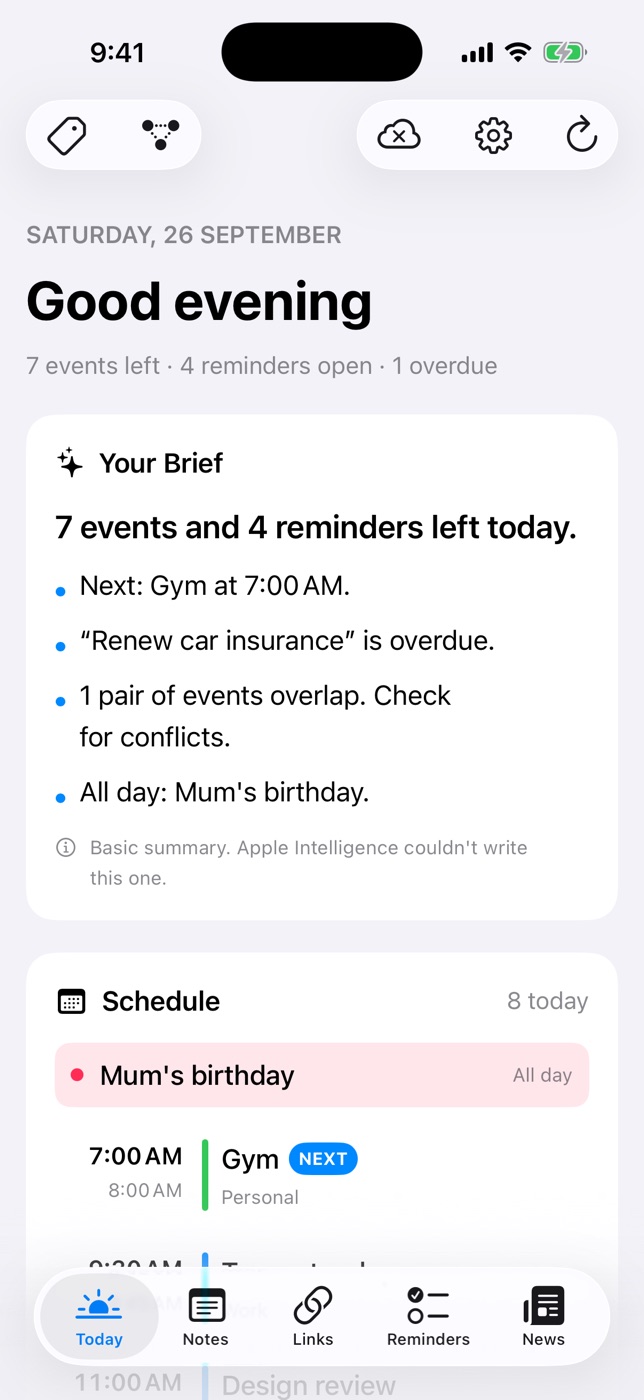
The newest category doesn't try to replace your calendar or task app. Instead it pulls everything into one screen: events, reminders, notes, saved articles, sometimes the news. Your data stays where it is; the dashboard is the window you look through.
Great for: people who already use Apple Calendar and Reminders (or want to) and just want one place to start the day. Watch out for: dashboards that only display and don't let you act. You should be able to tick off a reminder or open a note right from the overview.
Who should pick what
| If you… | Start with |
|---|---|
| Manage lots of projects with dozens of tasks each | A task-first planner |
| Think visually and like to block out the whole day | A timeline planner |
| Want free, private and simple, and don't mind switching apps | Apple Calendar + Reminders |
| Already live in Apple's apps and want one screen for the day | An all-in-one dashboard on top of them |
| Work across Windows, Android and iPhone | A cross-platform task app |
That last row matters. If you spend half your day on a Windows laptop, an app that only runs on Apple devices will leave gaps, however nice it is on the iPhone.
Where Daily Dash fits
Daily Dash is an all-in-one dashboard for iPhone, iPad, Mac and Apple Watch. We built it for people who like Apple Calendar and Apple Reminders but are tired of opening five apps to see one day.
- Today shows your calendars and Apple Reminders side by side with the app's own reminders, and flags events that overlap.
- Your Brief sums up the day in a few lines, written on your device by Apple Intelligence, with a rule-based summary when that isn't available.
- Quick add understands plain language: “call mom tomorrow at 5pm #family !!” or “buy milk when I leave work”.
- Notes are nested pages with checklists, headings and sub-pages, and can be locked with a PIN.
- Links is a read-later list that saves a readable copy of each page for offline reading.
- News follows RSS feeds and Google News topics, one day at a time.
- Tags are shared across all of it, including calendar events and Apple Reminders.
It doesn't replace Apple Calendar: it reads your calendars but you still create events in Calendar. And its own reminders don't repeat; for a weekly bin day, use a repeating Apple Reminder and it'll show on Today anyway. If you want a heavy project manager with nested projects and filters, a task-first app is a better fit.
What you get instead is privacy by default: no account, no ads, no analytics. Your library syncs through your own iCloud, and the brief and summaries run on your device.
Daily Dash is coming soon to the App Store
Calendar, reminders, notes, links and news on one calm screen, for iPhone, iPad, Mac and Apple Watch. See how it works →
How to test a planner in two weeks
Most planner apps feel wonderful on day one. The honest test is whether you still open it on a busy day in week two. Here's a simple trial plan.
- Day 1: set up the minimum. Connect your calendars, add your five most pressing tasks, and nothing else. Resist building a system.
- Days 2–7: use it at three moments only. In the morning to see the day, whenever something pops into your head, and at the end of work to plan tomorrow.
- Day 7: do a weekly review. Is everything you promised to do this week actually in the app? If not, why not?
- Days 8–14: live with it. Notice when you reach for a different app, sticky note or your memory instead. That's the app's weak spot.
- Day 14: decide. Keep it if you trusted it on your worst day, not your best.
FAQ
What is the best free daily planner for iPhone?
Apple Calendar and Apple Reminders together. They're free, private, and cover events, repeating tasks and location alerts. Many people only need a dashboard on top of them, not a replacement.
Should I use one app for everything or several?
As few places as possible, as long as each job is done well. The practical middle ground is keeping data in standard places like Apple Calendar and Reminders, and using one app that shows it all together.
Do I need an account for a planner app?
Not necessarily. Some apps sync through their own servers and need an account. Others, including Daily Dash, sync through your own iCloud and have no account at all.
How long should I try a planner before switching?
Two full weeks, including one weekly review. Switching apps every few days feels productive but mostly resets your system.