Blog › Reminders
Location-based reminders on iPhone: the complete guide
A reminder at 9 AM is useless if the thing you need to do can only happen at the pharmacy. Location-based reminders fix that: they wait until you're actually somewhere, then tap you on the shoulder. Here's how to set them up, why they sometimes stay silent, and the everyday uses that make them one of the best habits you can build on an iPhone.
Why time-based reminders fail
Most forgotten tasks aren't forgotten because you didn't know about them. They're forgotten because the reminder arrived at the wrong moment. “Pick up dry cleaning” at 5 PM fires while you're still in a meeting, you swipe it away, and by the time you're driving past the cleaner it's gone from your head.
The fix is to attach the reminder to the context where you can act on it. Psychologists call these implementation intentions: “when X happens, I'll do Y.” Research on them consistently shows people follow through far more often than with a vague plan. A location reminder is an implementation intention your phone enforces for you.
Setting one up in Apple Reminders
Apple's built-in Reminders app has supported location alerts for years. The steps:
- Open Reminders and create a new reminder.
- Tap the ⓘ button, then turn on Location.
- Pick Current, Getting In/Out of a car, Home, Work, or tap Custom and search for an address.
- Choose Arriving or Leaving, and drag the circle to set the radius.
- Tap Done.
You can also ask Siri: “Remind me to call the vet when I get home.” It works, but it takes five taps every time, and the Home and Work shortcuts depend on your contact card being filled in correctly. That friction is why most people try location reminders once and forget they exist.
The faster way: type it like you'd say it
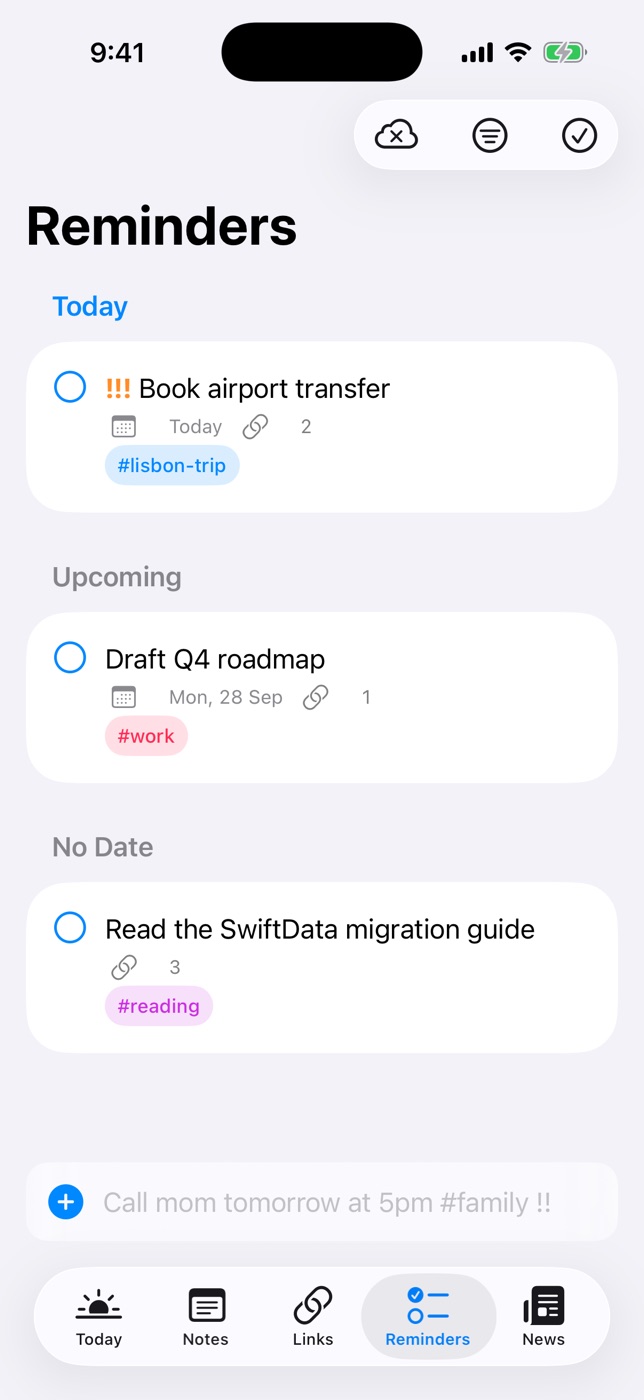
Daily Dash treats places as first-class. Save the places you visit often once, and from then on you can create a location reminder in a single line:
| You type | What happens |
|---|---|
Buy milk when I leave work | Alerts as you leave your saved place “Work” |
Water the plants when I get home | Alerts as you arrive at “Home” |
Refill the bottle at the gym #health | Alerts at “Gym”, tagged health |
A live preview shows what was understood before you save, so you're never guessing. To set up a place:
- Open any reminder and choose At a Place.
- Use your current location, or search and drop a pin on the map.
- Drag the radius to decide how big “there” is, then save it with a name like Gym or Mum's.
Saved places sync through your own iCloud, so a reminder typed on your Mac (“pick up the parcel when I leave work”) will alert on your iPhone. And because iOS itself watches the boundary, Daily Dash doesn't need to be open for the alert to fire.
9 real-life uses for location reminders
- The leave-work shopping list. “Buy milk when I leave work.” You're walking to the car anyway.
- The arrive-home decompression. “Put phone on the charger in the hall when I get home.” A small rule that protects your evenings.
- Things to bring back. “Return Sam's charger when I arrive at the office.” No more carrying it around for a week.
- The parents' house list. Save Mum's as a place, then drop in “ask about the insurance papers” whenever you think of it. It'll be waiting when you walk in.
- The pharmacy detour. Pin your pharmacy with a generous radius so the alert arrives while you can still turn in.
- Gym prompts. “Log today's weights at the gym.” Or on leaving: “stretch for five minutes”.
- Leaving-home checks. “Is the window closed?” as you leave Home. It's cheaper than worrying for the next hour.
- Travel. Drop a pin at the airport: “Buy a SIM card” on arrival.
- Hand-offs at school pickup. “Give the permission slip to the teacher” when you arrive at school.
Some tasks are really about time, not place: the parking meter, a school pickup, medication. For those, set a time instead and turn on Ring as Alarm in the reminder's details. Instead of a banner that's easy to miss in a pocket, it rings like a Clock alarm.
Try it in Daily Dash
Type “buy milk when I leave work” and you're done. Daily Dash puts your calendar, reminders, notes and saved links on one screen, with no account and no tracking. Read how places work →
Why your location reminder didn't fire
If an alert stayed silent, check these in order. It's almost always one of them.
- Location permission isn't “Always”. Settings › Privacy & Security › Location Services › the app. Region monitoring needs Always.
- Precise Location is off. Without it, iOS only knows roughly where you are, and small places never register.
- The radius is too small. Anything under about 100 m is unreliable, especially in cities where GPS bounces off buildings. 150–300 m is a sweet spot.
- Notifications are muted. Check the app's notifications are on and allowed as Time Sensitive, so a Focus mode doesn't swallow them. Daily Dash's Reminders tab warns you when a setting would block alerts.
- Low Power Mode. It can delay background location updates by several minutes.
- You set it on a Mac. Macs can't trigger by location. The alert will arrive on your iPhone or iPad instead.
- Too many places. iOS lets each app watch 20 regions. Daily Dash keeps the 20 nearest active and rotates as you move, so this rarely bites, but it's worth knowing.
FAQ
Do location reminders drain the battery?
Barely. iOS uses region monitoring, which relies on cell towers and Wi-Fi, not constant GPS, and only wakes an app when you cross a boundary.
Can I set a reminder for a time and a place?
Apple Reminders lets you set both, and alerts on whichever comes first. In practice, pick the one that matches when you can actually do the task.
Does the app need to be open?
No. iOS watches the place and delivers the alert even if the app has been closed for days.
Is my location sent anywhere?
Not by Daily Dash. Places are stored in your private iCloud, and the arrive/leave check is done by iOS on your phone. See the privacy policy.