Blog › Tips
Apple Watch productivity tips: 12 ways to use your phone less
The most productive thing an Apple Watch does is keep your phone in your pocket. Every time you pick up your iPhone to check the time of your next meeting, there's a good chance you'll end up somewhere else. A well-set-up watch answers the question and lets you get back to work. Here's how to set yours up for focus instead of noise.
The one rule: glance, don't browse
A watch is built for interactions that last a few seconds. That's its strength. You look, you know, you drop your wrist. The moment you find yourself scrolling on a watch, something has gone wrong: either it's showing you too much, or you're using it for a job your phone or laptop does better.
So the goal isn't to do more on the watch. It's to make sure the few things you look at are the right ones: the time, what's next, what you mustn't forget, and alerts that genuinely need you now.
Make it quieter
1. Mirror fewer notifications
By default your watch mirrors almost every iPhone notification. Open the Watch app on your iPhone, tap Notifications, and turn off everything that doesn't need your attention within a few minutes. Shopping apps, most social apps and newsletters can all go. Calendar, reminders, messages from people and your two-factor codes can stay.
2. Let Focus follow you
In the Watch app, make sure Focus is set to mirror your iPhone. When you turn on a Work or Do Not Disturb Focus on your phone, the watch goes quiet too. Without this, it's easy to silence your phone and still get tapped on the wrist all afternoon.
3. Keep Time Sensitive alerts for what matters
Reminder apps can mark alerts as Time Sensitive so they break through a Focus you allow. That's what you want for “leave for the dentist” and not for much else. Check each app's notification settings on your iPhone and allow Time Sensitive only where it earns it.
4. Choose a calm watch face
Pick a face with just the complications you use: time, your next calendar event, maybe weather or activity rings. A face crammed with data is its own kind of feed. Save a second, even simpler face for evenings and swipe to it when work's done.
Capture without your phone
5. Use Siri for quick reminders
Raise your wrist and say “Remind me to send the invoice at 3 PM” or “Remind me to buy stamps when I leave work.” It takes a few seconds and the thought is out of your head. Capturing the moment you think of something is the core of not forgetting things.
6. Dictate a note
For anything longer, dictate into a note app on your watch and deal with it later. The rule is capture now, organize later. Don't try to file things on a small screen.
7. Use the Action button or Double Tap
On models that have them, the Action button and the Double Tap gesture can start a workout, a timer or a shortcut, or dismiss an alert without touching the screen. Set the Action button to whatever you reach for most often, such as a stopwatch for focused work sessions.
See your whole day on your wrist
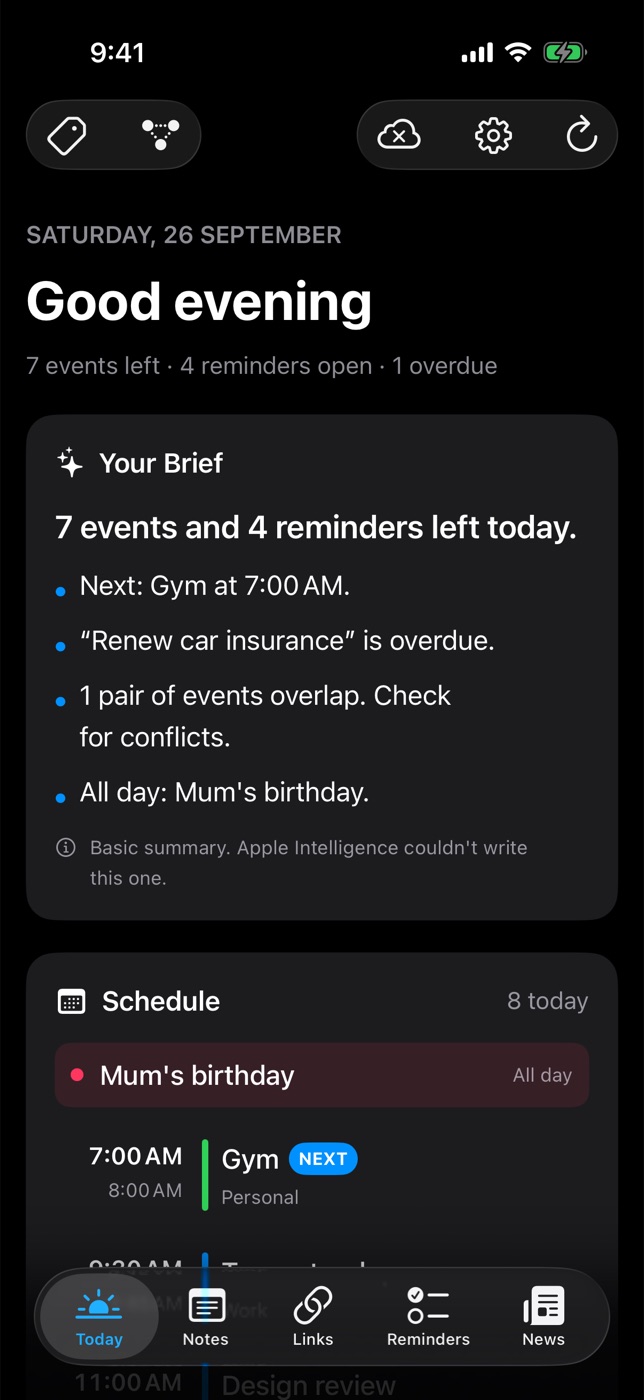
The built-in Calendar app shows your events and a complication can show the next one. That covers a lot. What it doesn't do is put your events, your to-dos and a summary of the day in one place.
That's what the Daily Dash watch app is for. Open it and you see, on one scrolling screen:
- Your Brief from your iPhone: a few lines about the day, like your next event, anything overdue and events that clash.
- Schedule: today's events, with the one happening now marked, and all-day items called out.
- Reminders due today.
- News: the top headlines picked on your iPhone.
It's the same picture as the Today screen on your phone, cut down to what fits a glance. Your iPhone keeps it current in the background, so there's no need to open the phone first. The one exception: after installing, open Daily Dash on your iPhone once so it can send the first update.
Your day at a glance
Daily Dash brings your calendar, reminders, notes, links and news together on iPhone, iPad, Mac and Apple Watch, with a daily brief written on your device. See the watch app →
Small habits that add up
8. Check the watch before the phone
Make it a rule: when you want to know something about your day, look at your wrist first. Most of the time the answer is there and the phone stays down.
9. Use timers for focus blocks
Start a 25 or 50-minute timer on your watch when you begin a piece of work. A tap on the wrist when it's done is gentler than a phone alarm, and it doesn't pull you into your Lock Screen. Pair it with time blocking for the most effect.
10. Let the wrist handle leave-now moments
Location-based reminders set on your iPhone arrive on your watch too. “Pick up the parcel when I leave work” taps you as you walk out, not while you're halfway home. Our location reminders guide covers the setup.
11. Use Wind Down and Sleep Focus
Set up Sleep in the Health app so your watch goes quiet at night and your wake-up alarm is a tap rather than a blare. A calmer start makes the rest of the morning easier.
12. Audit once a month
Once a month, look at which notifications you dismissed without reading. Turn those off on the watch. Notification lists grow back quietly, like weeds.
FAQ
Is an Apple Watch good for productivity?
Yes, if you use it to glance and capture rather than to browse. The biggest benefit is fewer phone pickups.
How do I stop my Apple Watch buzzing all the time?
In the Watch app on your iPhone, go to Notifications and turn off mirroring for apps that don't need you right away, then let Focus mirror your iPhone.
What does the Daily Dash watch app show?
Today's schedule, reminders due today, and the brief and headlines from your iPhone. Open Daily Dash on your iPhone once after installing so it can send the first update.