Blog › Planning
Time blocking: how to time block your day so it actually happens
A to-do list tells you what to do. It never tells you when. Time blocking answers the second question by giving every important task a slot on your calendar. It's one of the simplest planning methods there is, and one of the easiest to get wrong. Here's how to do it well, three templates to start from, and how to run it from your iPhone.
What time blocking is (and why it works)
Time blocking means dividing your day into chunks and assigning each chunk a job: “9:00–10:30 write the proposal”, “11:00–11:30 email”, “2:00–3:00 review designs”. Your calendar stops being a list of meetings other people booked and becomes a plan for the whole day.
It works for a few plain reasons:
- It forces honesty. A to-do list can hold 30 items. An eight-hour day can't. Blocking shows you, before the day starts, what's realistic.
- It removes decisions. When a block ends, the next one is already chosen. You don't spend ten minutes deciding what to do next.
- It protects deep work. A block on the calendar looks like a commitment, to you and to colleagues who check your availability.
- It groups similar work. Answering email in two batches is less draining than answering it in twenty scattered moments.
How to time block your day in 6 steps
- Start with the fixed things. Put in meetings, appointments, school runs and anything else that can't move. These are the walls of your day.
- Pick your priorities. Choose one to three meaningful tasks. If you did a morning check-in, you already have the “one thing”.
- Block your best hours for the hardest work. Most people have a stretch when they think most clearly, often mid-morning. Put the most demanding task there.
- Batch the shallow stuff. Email, messages, admin and quick calls go into one or two short blocks rather than leaking across the day.
- Add buffers. Leave 10–15 minutes between blocks and one open block in the afternoon for things that overrun or appear out of nowhere.
- Review and adjust. At the end of the day, look at what actually happened. Move unfinished work to tomorrow's blocks rather than letting it float on a list.
Three time blocking templates
Copy one of these as a starting point, then bend it to fit your life.
1. The maker's day
For writers, developers, designers and anyone whose best work needs long, quiet stretches.
| Time | Block |
|---|---|
| 8:30–8:45 | Check-in: schedule, reminders, pick the one thing |
| 8:45–11:15 | Deep work block 1 |
| 11:15–11:45 | Email and messages |
| 11:45–12:30 | Meetings or calls |
| 12:30–1:30 | Lunch, away from the screen |
| 1:30–3:00 | Deep work block 2 |
| 3:00–4:00 | Flex: spillover, admin, collaboration |
| 4:00–4:30 | Email, then shutdown and plan tomorrow |
2. The meeting-heavy day
For managers and anyone whose calendar fills up by itself. The goal is to claim the gaps before they vanish.
| Time | Block |
|---|---|
| 8:30–9:30 | Focus block: the one task that needs your full attention |
| 9:30–12:00 | Meetings, with 5-minute gaps to write notes and add reminders |
| 12:00–12:30 | Process notes: turn action items into reminders |
| 12:30–1:15 | Lunch |
| 1:15–4:00 | Meetings |
| 4:00–5:00 | Email, follow-ups, plan tomorrow |
3. The parent / personal day
Time blocking isn't only for work. On a busy home day, a few broad blocks keep things from sprawling.
| Time | Block |
|---|---|
| 7:00–8:30 | Breakfast and school run |
| 9:00–10:00 | Errands, in one loop (set location reminders for each stop) |
| 10:00–12:00 | The big household task |
| 2:00–3:00 | Admin: bills, forms, appointments |
| 3:00–5:30 | Pickup, activities |
| 8:30–9:00 | Reset: tomorrow's calendar and reminders |
For the errands block, location-based reminders pair nicely: the reminder waits for you to reach the shop instead of pinging you at a fixed time.
Common pitfalls and how to avoid them
Blocking every minute
A calendar with no white space breaks the first time something runs late. Plan for about 70–80% of your day and leave the rest open.
Treating the plan as a contract
Blocks will move. That's fine. The point is to make conscious trade-offs: if an urgent request arrives, you decide which block it replaces instead of letting it quietly eat the afternoon.
Double-booking yourself
This is the sneaky one. You block 2–3 PM for the report, a colleague books a meeting at 2:30 on your work calendar, and you don't notice because your blocks live on a personal calendar. Now you're scheduled in two places. Whatever tool you use, you need one view that shows every calendar together and makes overlaps obvious.
Tasks with no block
If a task matters but never gets a slot, it isn't really a priority. Either give it a block this week or move it off the list.
Skipping the end-of-day review
Without a quick look back, you can't learn how long things really take. Five minutes is enough.
Time blocking on iPhone
You don't need a special app to create time blocks. The built-in Calendar app does the job well:
- Create a dedicated calendar called Blocks (or Focus) with its own colour, so your blocks look different from meetings.
- Add each block as an event. Short, action-based titles work best: “Draft proposal”, not “Proposal”.
- If you share availability with colleagues, create blocks on your work calendar and mark them as busy.
- For routines like a daily email batch, set the event to repeat.
- Put tasks that need a time but not a block (call the dentist, pay the invoice) in Reminders with a due time.
Where things get messy is seeing the day. Blocks are in Calendar, tasks are in Reminders, the meeting invite is on your work calendar, and none of them tells you when two things collide.
See your blocked day on one screen
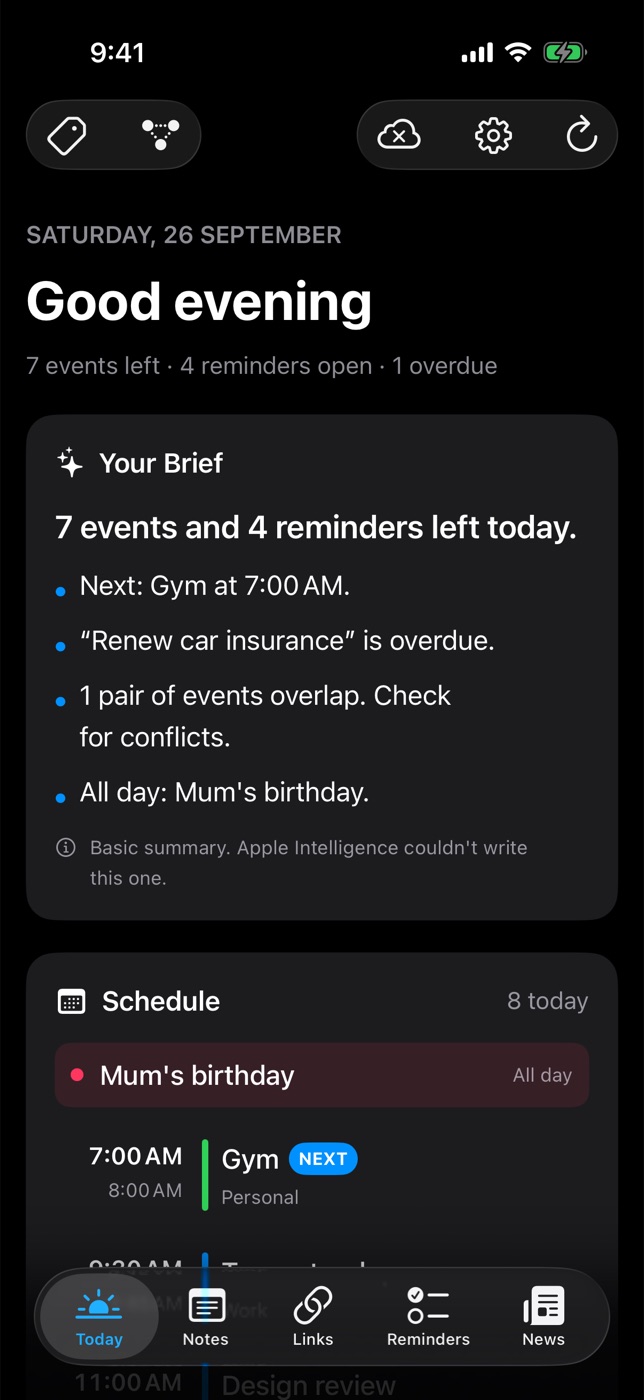
Daily Dash doesn't replace your calendar; it reads it. The Today screen shows every event from every calendar you've allowed, with the next one marked Next and overlapping events flagged, so a meeting landing on top of a focus block stands out straight away. The brief at the top calls out clashes too, along with anything overdue.
Under the schedule, your reminders (from Apple Reminders and Daily Dash's own) sit right beside your blocks, so you can see whether the day's tasks actually fit. Tags work across events and reminders as well, which makes it easy to see everything tagged #work or #home together.

Catch clashes before they catch you
Daily Dash shows your calendars and reminders on one screen and flags overlapping events in the schedule and the brief. Private by design, synced through your own iCloud. See how Today works →
FAQ
What is time blocking?
Planning your day by giving each piece of work its own slot on your calendar, rather than keeping a to-do list and hoping you find time for it.
How long should a time block be?
For focused work, 60 to 90 minutes is a good range. Shallow tasks such as email and admin can be batched into 20 to 30 minute blocks.
What if my time blocks keep getting interrupted?
Leave buffer between blocks, keep one flexible block in the afternoon, and when a block breaks, move it rather than deleting it.
What's the best app for time blocking on iPhone?
The built-in Calendar app is enough to create blocks. Pair it with a daily view like Daily Dash that shows your schedule next to your reminders and flags overlapping events.