Blog › Planning
Getting Things Done on iPhone: a simple GTD setup
David Allen's Getting Things Done has outlived dozens of apps built to implement it. That's a clue: GTD doesn't need special software, it needs a setup with as few moving parts as possible. Here's how to run the whole method on an iPhone with tools you mostly already have, and where a daily dashboard fills the gap.
GTD in two minutes
GTD rests on one idea: your head is for having ideas, not holding them. Every open loop, from “renew passport” to “maybe learn Spanish”, gets written down in a trusted system, so your mind stops nagging you about it at 2 AM.
The method has five steps:
- Capture everything that has your attention.
- Clarify what each item means and what the next action is.
- Organize the results into the right lists.
- Reflect on the whole system regularly, especially weekly.
- Engage: do the work, choosing tasks by context, time and energy.
Most people who “fail at GTD” don't fail at any one step. They build a system with so many lists, tags and apps that it becomes a second job, then quietly stop maintaining it. Keep that in mind as you set things up: fewer places, fewer rules.
Step 1: Capture
Capture has to be faster than forgetting. If it takes more than a few seconds, you'll tell yourself you'll remember, and you won't.
On iPhone, you have three fast inboxes:
- Siri: “Remind me to email Priya about the budget.” Good when your hands are busy.
- A quick-add field in your task app. Good when you can type.
- A note for anything longer than a line: meeting jottings, a half-formed idea.
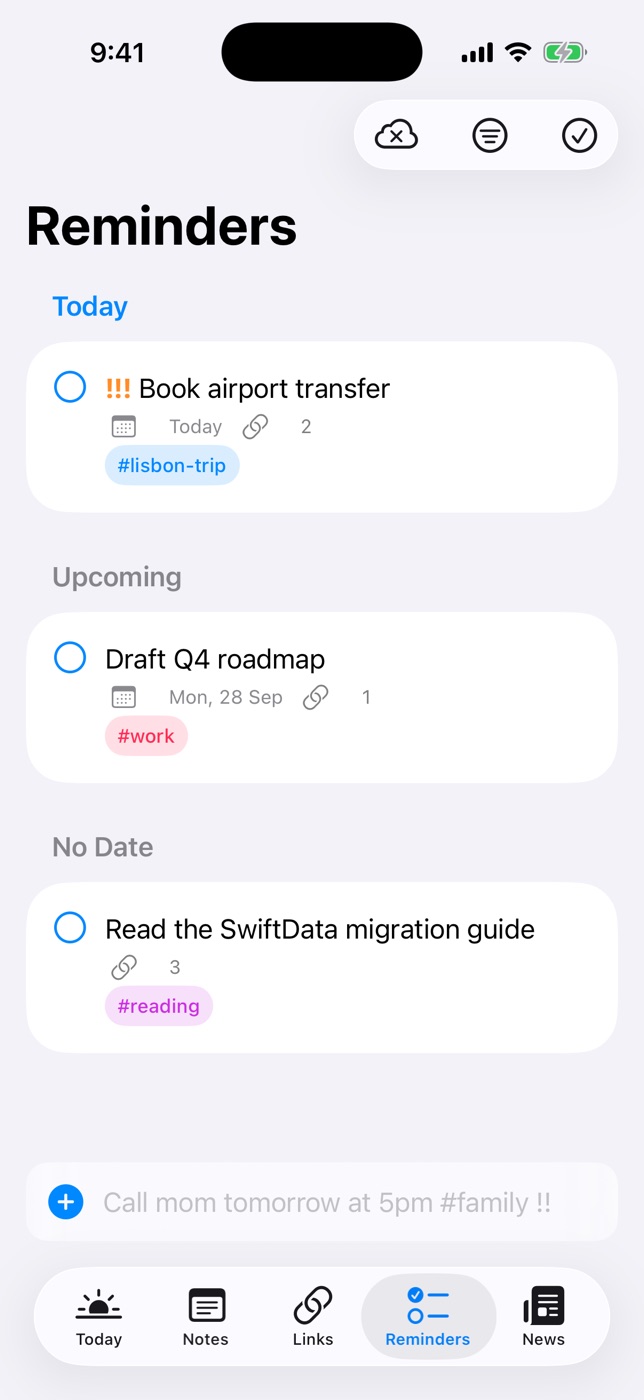
In Daily Dash, capture happens in the quick-add field at the bottom of the Reminders tab, and it understands what you type. “Call the plumber tomorrow at 9 #calls” becomes a reminder called Call the plumber, due tomorrow at 9 AM, tagged calls. A live preview shows what was understood before you save, so you don't have to fiddle with pickers.
Step 2: Clarify
Once a day, go through what you captured and ask Allen's two questions:
- Is it actionable? If not, trash it, file it as reference, or park it as someday/maybe.
- What's the next action? Not “sort out car”, but “call the garage to book a service.” A next action is something you could do right now if you were in the right place.
Apply the two-minute rule: if the next action takes under two minutes, do it now instead of tracking it. Everything else gets rewritten as a concrete next action.
Rewriting is the step people skip, and it's the one that matters most. A list full of vague blobs like “taxes” or “mum's birthday” is a list you'll avoid looking at. A list of verbs, like “download bank statements” or “order the photo book”, is one you'll work through.
Step 3: Organize with tags and places
Classic GTD uses a set of lists. Here's how each maps to iPhone tools without building a maze:
| GTD list | On iPhone |
|---|---|
| Calendar (hard landscape) | Apple Calendar. Only things that must happen on that day or at that time. |
| Next actions by context | Reminders with tags: #calls, #computer, #home, #errands |
| Errands | Location reminders that alert when you arrive or leave a place |
| Waiting for | A #waiting tag, with a date to follow up |
| Projects | A note page per project, listing the outcome and its next action |
| Someday / maybe | Reminders with no date, or one Someday page |
| Reference | Notes and saved links, tagged by topic |
Contexts as tags
Contexts answer “what can I do from here, with what I have?” Tags are the lightest way to model them. Keep it to four or five. If you have a tag you never filter by, delete it.
In Daily Dash, one set of tags is shared by reminders, notes, links, news feeds, calendar events and Apple Reminders. Tap #calls in the Tags view and you see every call you need to make, whichever app it lives in. That's closer to what Allen meant by a context list than a folder ever gets.
Errands as places
The errands list is where GTD on paper always struggled: you had to remember to look at it while you were out. Location reminders solve this. Save the places you visit (Home, Work, the supermarket) and type Buy printer ink when I leave work. Daily Dash turns that into a reminder that alerts as you leave, on iPhone and iPad. Our guide to location reminders covers the setup and the settings that make them reliable.
Projects as pages
GTD defines a project as any outcome that needs more than one action. Give each project a note page with three things: the outcome in one sentence, the next action, and any reference material. In Daily Dash, pages can nest, so a “Projects” page can hold one sub-page per project, and you can connect a project page to its reminders, links and calendar events so everything related is one tap away.
Repeating actions
For truly recurring tasks (“pay rent on the 1st”), use Apple Reminders' repeat option. Daily Dash shows Apple Reminders on its Today screen next to its own, so they still land in one daily view.
One daily view for your GTD system
Daily Dash puts your calendar, Apple Reminders and its own reminders on one Today screen, with shared tags as contexts and places for errands. No account, no tracking. See how quick add works →
Step 4: Reflect
Allen calls the weekly review the critical success factor, and he's right. Without it, the system drifts: lists fill with dead tasks, you stop trusting them, and you're back to holding everything in your head.
A good weekly review takes about 30 minutes: empty your inboxes, walk through last week's and next week's calendar, prune your next actions, check every project has a next action, and glance at someday/maybe. We've written a full weekly review template you can paste into any notes app.
Daily reflection matters too, just smaller. Each morning, look at what's due today, what's overdue, and what's on the calendar. That's two minutes, and it's the habit that keeps GTD from falling apart between reviews.
Step 5: Engage
GTD's model for picking what to do is simple: given where you are, how much time you have, and how much energy you have, what's the best next action?
The trap on iPhone is that answering that question means opening four apps. Calendar to see how long until your next meeting, Reminders for tasks, notes for the project, mail for what's waiting. Each switch is a chance to get distracted.
This is the gap a dashboard fills. Daily Dash's Today screen shows your schedule with the next event marked, what's due and overdue from both Apple Reminders and its own list, and a short brief written on your device that flags overlaps and overdue items. You glance once, see you have 40 minutes before your next meeting, and pick a #computer task that fits.
On the go, the Apple Watch app shows today's schedule and reminders, which is often enough to decide what's next without pulling out your phone.
Common GTD mistakes on iPhone
- Too many apps. A task app, a GTD app, a notes app, a read-later app, a habit app. Every extra place is another inbox to check. Aim for as few as you can.
- Too many contexts. Ten tags you never filter by are worse than none. Start with
#calls,#computer,#errandsand#waiting. - Putting wishes on the calendar. If it doesn't have to happen that day, it belongs on a list. A calendar full of hopeful tasks trains you to ignore it.
- Dates on everything. Fake due dates make the Today list untrustworthy. Leave most next actions undated and pick from them by context.
- Skipping the weekly review. It's the first thing to go when you're busy, which is exactly when you need it.
- Capturing, never clarifying. An inbox of 200 unprocessed items is just a longer list of worries.
FAQ
Can I do GTD with just Apple Reminders?
Yes. Apple Reminders covers capture, lists, tags, dates, repeats and location alerts, which is most of GTD. What it lacks is a single daily view that combines your calendar with your next actions, which is where a dashboard helps.
What is a context in GTD?
The tool, place or person you need to do a task: calls, errands, computer, a specific colleague. Tags like #calls and #errands work well as contexts on iPhone.
Where should someday/maybe items go?
Reminders with no date, or a single Someday page. Review them weekly and promote the ones you're ready for.
Do I need a dedicated GTD app?
Not necessarily. GTD is a method, not software. The best setup has the fewest places to check, so many people do better with the apps they already have plus one daily view.