Blog › Planning
The weekly review template: a 30-minute GTD checklist
If you only adopt one productivity habit, make it the weekly review. Thirty minutes once a week to empty your head, check what's coming and pick what matters turns a pile of lists into a system you actually trust. Below is a simple routine, a copy-paste template, and the traps that make most people give up by week three.
What a weekly review is (and isn't)
The weekly review comes from David Allen's Getting Things Done (GTD), where he calls it the critical success factor of the whole method. The idea is simple: during the week, things slip. Notes pile up in odd places, a promise made in a hallway never reaches your list, a reminder gets snoozed four times. Once a week, you stop, gather it all up, and bring your system back in line with reality.
Allen splits it into three stages:
- Get clear. Collect everything loose and process it to empty.
- Get current. Walk through your lists and calendar so nothing is out of date.
- Get creative. Step back and decide what you want the next week to be about.
A weekly review is not a guilt session, and it isn't a time to do the work itself. If you catch yourself answering emails or rewriting a document, stop, write down the next action, and keep moving. The review is about deciding, not doing.
Allen's full version can take an hour or two. That's great if you have it. But a review you skip is worth nothing, so the routine below is trimmed to the parts that give the biggest return in about 30 minutes.
The 30-minute routine
1. Get clear (10 minutes)
- Empty your head. Set a two-minute timer and write down every open loop you can think of: calls to return, things you said you'd look into, worries. Don't sort, just list.
- Empty your inboxes. That means the physical tray, the notes app, screenshots, voice memos, your email flags and the tabs you left open “for later”. For each item: do it if it takes two minutes, turn it into a reminder, file it, or delete it.
- Triage your read-later list. Saved articles quietly become a second inbox. Keep the few you still want, delete the rest without guilt.
2. Get current (12 minutes)
- Look back at last week's calendar. Scan each day. Did a meeting create a follow-up you never wrote down? Did someone promise to send you something?
- Look ahead two weeks. Spot deadlines, travel, birthdays and anything that needs preparation. Add the prep as reminders now, with a date.
- Walk your reminders. Tick off what's done. Reschedule anything overdue to a real date, or delete it if you're honestly not going to do it. An overdue list you ignore is worse than no list.
- Check your “waiting for” items. Who owes you a reply? Decide whether to nudge them this week.
- Review active projects. For every project, ask one question: is there a clear next action on my list? If not, write one.
3. Get creative (8 minutes)
- Reflect briefly. What went well? What dragged? One or two sentences each is enough.
- Choose three priorities. Not ten. Three outcomes that would make next week a good week.
- Protect them. Put time for each on your calendar before the week fills up. (Our time-blocking guide covers how.)
- Glance at your someday list. Anything ready to become active? Anything you can let go of?
Copy-paste weekly review template
This template is plain Markdown, so it pastes cleanly into almost any notes app. Copy it into a new note each week and tick through it.
## Weekly review: week of ________

### Get clear
- [ ] Brain dump: every open loop on paper
- [ ] Physical inbox empty
- [ ] Notes, screenshots and voice memos processed
- [ ] Email flags and starred messages processed
- [ ] Read-later list triaged (keep, archive or delete)
- [ ] Browser tabs closed or saved

### Get current
- [ ] Last week's calendar: follow-ups captured
- [ ] Next 2 weeks' calendar: prep added as reminders
- [ ] Reminders: done ticked, overdue rescheduled or deleted
- [ ] Waiting-for list checked, nudges planned
- [ ] Every active project has a next action

### Get creative
- What went well:
- What didn't:
- One thing to change:

### Next week's top 3
1.
2.
3.

- [ ] Time blocked on the calendar for all three
- [ ] Someday list skimmedRunning your review in Daily Dash
Any notes app and calendar will do the job. The reason we built Daily Dash the way we did is that most of the review happens in one place: your calendar, Apple Reminders, the app's own reminders, notes, saved links and news feeds all sit side by side. Here's how we'd set it up.
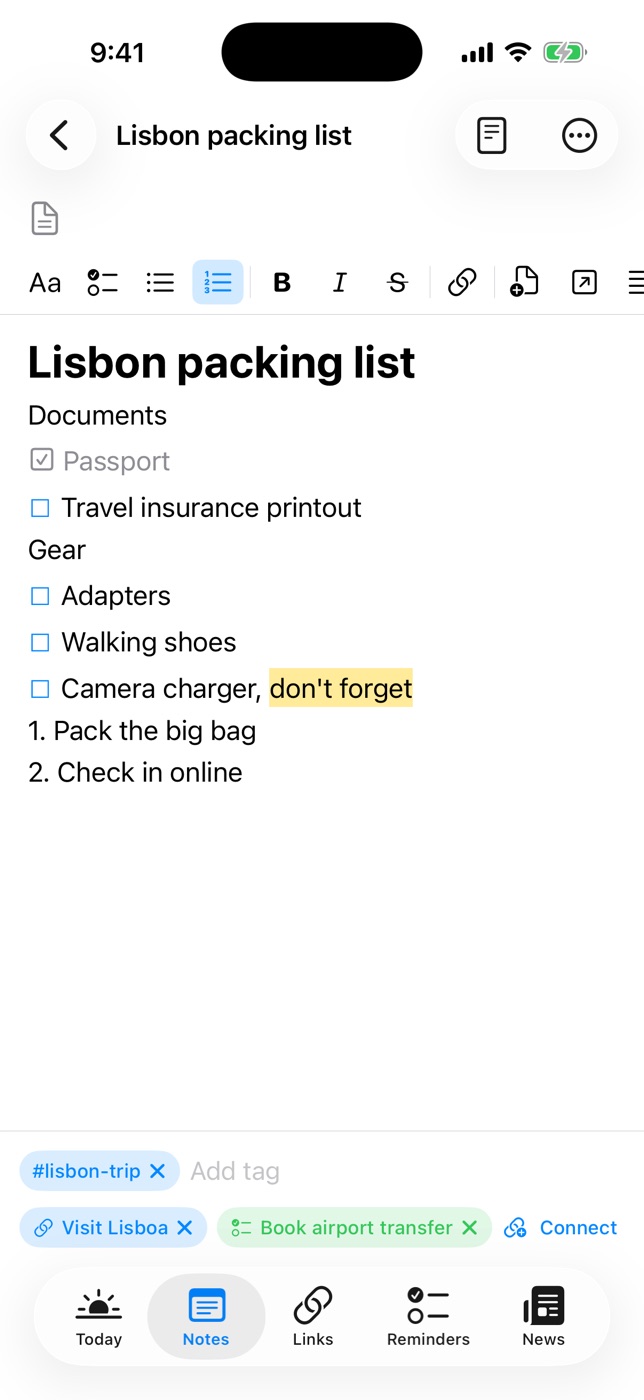
A “Weekly Reviews” page with a sub-page per week
Notes in Daily Dash are pages, and pages can live inside other pages. Create a parent page called Weekly Reviews, give it an emoji icon, and star it so it sits under Favorites. Each week, open it and type / to add a new page inside this one named after the week. Paste the template in: because notes are stored as Markdown, the checkboxes and headings come through as real checklists.
Over a few months this becomes a quiet record of how your weeks actually went. Breadcrumbs at the top of each week take you back to the parent, and the parent shows every week as a tappable block. If you want the template on hand, keep a copy as the first sub-page and duplicate its contents from there.
Get current from the Today screen
The Today screen shows your schedule and every reminder due today or overdue, from both Apple Reminders and Daily Dash's own reminders. That makes the “walk your reminders” step fast: tick things off right there, then open the Reminders tab to reschedule the rest. The Upcoming section shows what's already dated for the coming days, so you can see at a glance where a week is overloaded.
When you add prep tasks, use quick add and type them as you'd say them: Book train for Leeds next Tuesday #travel !! becomes a dated, tagged, medium-priority reminder in one line.
Tag your projects
Tags in Daily Dash are shared across notes, links, reminders, feeds, calendar events and Apple Reminders. Give each active project a tag, say #kitchen-reno, and the Tags view becomes your project review: tap the tag and see every note, reminder, link and event that belongs to it. If a project's tag has no open reminder, it has no next action. Write one.
Triage Links and clear old news
Your saved Links are your read-later inbox. Scroll the list during the review: each recent link has a short on-device summary under its title, which makes it easy to decide in a second whether you still care. Keep the good ones and tag them, delete the rest.
News has a matching cleanup step. In the News tab, Clear Old News… removes every story published before a date you choose. Pick last Sunday and start the new week with only fresh headlines. Anything worth keeping, save to Links first.

Do your weekly review in one app
Daily Dash puts your calendar, reminders, notes, saved links and news on one screen, synced through your own iCloud, with no account and no tracking. See how pages and sub-pages work →
How to make the habit stick
- Put it on the calendar. A recurring event, same time every week. Friday at 3 PM works well for work; Sunday evening for home. Treat it like a meeting with someone important.
- Pick a place. A café, a particular chair, the kitchen table with a coffee. Context makes habits easier to start.
- Use a location or time nudge. If your review happens at a specific café, a location reminder for “weekly review” on arriving there is surprisingly effective.
- Do the short version rather than none. On a bad week, just empty your inboxes and look at the next seven days. Ten minutes still counts.
- Don't moralise. The reflection step is for learning, not self-criticism. “Too many meetings on Wednesday” is useful. “I'm hopeless” isn't.
- Notice the payoff. The first Monday you start without that low hum of “what am I forgetting?” is when the habit clicks.
FAQ
How long should a weekly review take?
Allen suggests an hour or more for the full GTD version. Once your lists are in decent shape, a focused 30 minutes covers what most people need. Your first one will take longer, because you're clearing a backlog.
What day is best for a weekly review?
Friday afternoon for work, because the week is fresh and Monday starts clean. Sunday evening suits personal life. The best day is the one you'll actually protect.
What's the difference between a weekly review and weekly planning?
Planning only looks forward. A review looks back first, catching loose ends and updating your lists, so the plan you make is built on an accurate picture.
What if I skip a week?
Do the short version next time and move on. Don't try to review two weeks at once; restart the habit instead.