Blog › Notes
How to build a second brain on your iPhone
A “second brain” sounds like something that needs a weekend course and a wall of colour-coded databases. It doesn't. At heart it's a simple promise: anything worth remembering goes somewhere you trust, and it comes back when you need it. Here's how to build one on the phone that's already in your pocket, how to choose between tags, folders and links, and how to pick an app without regretting it in six months.
What a second brain actually is
The phrase was popularised by Tiago Forte's book Building a Second Brain, but the idea is old. Scientists kept lab notebooks, writers kept commonplace books, and your grandmother probably had a recipe box with notes in the margins. The common thread: your head is for having ideas, not holding them.
A digital second brain does the same job with a few advantages. It's searchable, it's with you all the time, and items can point at each other. A note about a trip can link to the booking confirmation, the hotel's website and the reminder to renew your passport.
What it isn't: a museum. If you collect hundreds of articles and never look at them again, you've built an attic, not a brain. The value comes from things resurfacing at the right moment.
The four-step loop
1. Capture
Get things out of your head fast, before they evaporate. The rule: capture should take seconds, not minutes. If saving an idea means choosing a folder, a template and three properties, you'll stop doing it. One quick-add field, one share button, done.
Capture what resonates, not everything. A good filter: “Would I be annoyed if I couldn't find this in a month?”
2. Organize
Organize by where you'll use it, not by topic. Forte's PARA method is a useful default: Projects (things with a deadline), Areas (ongoing responsibilities like health or finances), Resources (topics you're interested in) and Archive (everything finished). You don't need to adopt it wholesale; the lesson is that fewer, action-oriented buckets beat a deep topic tree.
Organize lightly and later. Sorting a note the moment you write it is often wasted effort; sorting it during a weekly review is cheap.
3. Connect
This is where a second brain becomes more than a filing cabinet. When you link a meeting note to the project it's about, or tag an article with the same tag as a reminder, you create paths that lead you from one idea to the next. Connections are what make “I read something about this once” findable.
4. Resurface
The step everyone forgets. Notes are only useful if they come back. That can be a daily screen you look at, a weekly review, a tag you open before a meeting, or backlinks that show you older notes pointing at the one you're reading.
Tags vs folders vs links
This debate eats more time than it deserves. Each tool answers a different question, and good systems use all three.
| Tool | Answers | Good for | Watch out for |
|---|---|---|---|
| Folders / nested pages | Where does this live? | Projects, notebooks, anything with a natural parent | Deep trees; an item can only live in one place |
| Tags | What is this about? | Themes across projects: #health, #travel, #client-acme | Tag sprawl; synonyms like #trip and #travel |
| Links | What is this related to? | Specific relationships between two items | Linking everything to everything, which means nothing |
A practical recipe that works for most people:
- Keep hierarchy shallow. Two levels deep is plenty. If you're three folders in, you'll never find it again without search.
- Keep a short tag list. Fifteen to thirty tags is a healthy size. Review them occasionally and merge duplicates.
- Link on purpose. Link when you'd genuinely want to jump from one item to the other. The test: “If I open this in a year, will that link help?”
Choosing a second brain app for iPhone
There's no single best app, and anyone who says otherwise is selling something (including us, so weigh this accordingly). Ask these questions:
- Is capture fast on the phone? Most capture happens on the go. Desktop-first apps often feel clumsy on iPhone.
- Does it work offline? Ideas show up on trains and planes too.
- Where does your data live? On a company server, on your device, or in your own cloud account?
- Can you get your notes out? Plain text or Markdown export protects years of work.
- Does it reach beyond notes? Many “second brains” fail because tasks, calendar and reading live in separate apps that never talk to each other.
When another app is the better choice
To be fair about it:
- Obsidian is excellent if you want a folder of plain Markdown files on disk, a huge plugin ecosystem and deep customisation, and you're comfortable tinkering.
- Notion shines for teams and anyone who needs databases with custom properties, shared workspaces and web publishing.
- Apple Notes is free, fast, built in, and now has tags and note links. If it covers your needs, you may not need anything else.
Where Daily Dash fits: you want a personal second brain on Apple devices that also holds your reminders, saved articles and news, with your calendar alongside, and you'd rather it stayed private in your own iCloud.
Building one in Daily Dash
Capture in one line
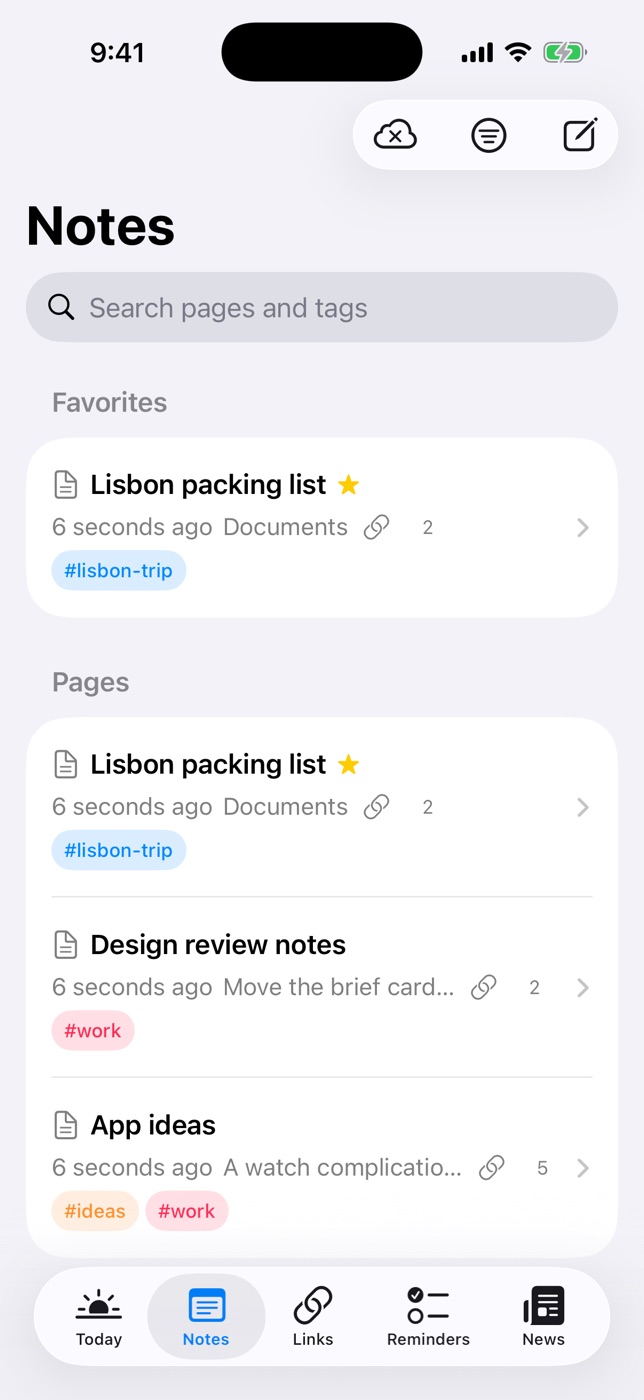
Tasks go into Reminders' quick-add field, typed the way you'd say them: Email Priya about the draft Friday #client-acme. Links go into the Links tab, where Daily Dash fetches the title and icon and saves a readable copy of the page on your device, so it's there even offline. Ideas go into a new page with the compose button.
Organize with nested pages
Notes are pages, and pages can live inside other pages. Build your top level however you like: PARA-style (Projects, Areas, Resources, Archive) or just one page per big area of life. Drag pages to reorder or nest them, use Move To, and star the few you open daily so they sit under Favorites. Breadcrumbs at the top take you back up the tree.
Connect with links, backlinks and tags
Type / at the start of a line to add a link to another page or a new page inside this one. Embedded pages show as tappable blocks whose titles stay current when you rename them. And every page lists the pages that link to it, so connections work in both directions: open your “Sleep” note and see every journal entry and article summary that referenced it.
Tags go further than notes. Daily Dash has one set of tags shared by notes, links, reminders, news feeds, calendar events and Apple Reminders. Tag a project #kitchen-reno and the Tags view shows the planning note, the saved tile supplier link, the reminder to call the plumber and the calendar event for the delivery, together.
For relationships that don't fit a tag, use Connect. It links any item to any other: a trip note to its flight reminder, the hotel link and the calendar event. Connections appear as chips in the editor, and the Graph puts one item in the middle with everything it touches around it. Tap a neighbour to walk to it.
Resurface from Today
The Today screen is where your second brain meets your day: a short brief written on device by Apple Intelligence, your schedule, what's due, and the headlines from feeds you follow. Because reminders and events share tags with your notes, it's one tap from “meeting with Acme at 2” to everything tagged #client-acme.
Keep it yours
Notes are stored as Markdown. You can switch any note to its Markdown source, and export it as Markdown (with tags and dates as front matter) or as a PDF. Your library syncs through your own private iCloud, there's no account and no server of ours, and summaries run on your device. Sensitive pages can be locked with a PIN and Face ID or Touch ID.
A second brain that includes your day
Daily Dash connects notes, reminders, saved links, news and your calendar with one set of tags, synced privately through iCloud. See how tags and connections work →
FAQ
What is a second brain?
A trusted place outside your head for ideas, notes, references and tasks, organized so you can find and reuse them later.
Should I use tags or folders?
Both. Use a shallow set of folders or pages for where something lives, tags for themes that cut across projects, and direct links when two specific items relate.
Is Apple Notes good enough for a second brain?
For many people, yes. Consider something else if you want nested pages, Markdown storage, or tags shared with your reminders, calendar and saved links.
Can I move my notes out later?
In Daily Dash, yes: every note can be exported as Markdown with its tags and dates, or as a PDF.