Blog › Reading
The best Pocket alternative is a read-later habit you'll actually clear
Pocket was many people's “I'll read that later” drawer for over a decade. Then Mozilla shut it down, and a lot of those drawers were emptied for good. If you're still looking for a replacement, here's what matters in a read-later app, what to skip, and how to set up a habit that turns saved articles into read ones.
What happened to Pocket
Mozilla announced in May 2025 that Pocket would close. The app stopped working in July 2025, users had until October to export, and remaining data was deleted in November. If you missed the export window, those saves are gone.
That's the first lesson worth carrying into whatever you use next: a read-later list is only as durable as the company holding it. Pocket wasn't the first to go (Omnivore closed too), and it won't be the last. So before comparing features, it's worth asking a simpler question: where does my stuff live, and what happens if this app disappears?
What to look for in a replacement
1. Real offline copies
Some apps save a link and fetch the page when you open it. That's a bookmark, not a read-later app. The whole point is reading on a plane, a train or in a basement café, so check that the app stores the article text and images on your device. It also protects you from link rot: pages move, go behind paywalls or vanish, and a saved copy outlives them.
2. Data you control
After Pocket, many people are wary of yet another account. Look for one of these:
- Easy export in an open format, so leaving is painless.
- Storage you already own, like your own iCloud, so the data doesn't depend on the app company's servers.
- Self-hosting, if you're technical and want total control (Wallabag is the well-known option).
3. A clean reader
Ads, cookie banners and autoplay videos are why you saved the article instead of reading it on the spot. A good reader view strips all that and gives you comfortable text in light or dark mode.
4. Somewhere to put your thoughts
Highlights are nice. A note is often more useful: one or two lines on why you saved it or what you took from it. That's what makes an article findable six months later.
5. Summaries, used carefully
A short summary under each saved link helps you triage: read now, read later, or let go. It shouldn't replace reading, but it's a great filter for an overgrown list. If privacy matters, prefer summaries generated on your device rather than by sending articles to a server.
6. It fits the rest of your day
A reading list you never open is worse than none. The best app is the one you already look at daily. That might be a dedicated reader, or it might be something that shows your saved links next to your calendar and to-dos.
The main options, briefly
There's no single winner, and the right pick depends on how you read. In broad strokes:
- Instapaper is the closest like-for-like swap for Pocket: save, read in a clean view, done.
- Matter focuses on a polished reading experience on iPhone, with extras like listening to articles.
- Readwise Reader is built for heavy readers who highlight, handle newsletters and PDFs, and export notes elsewhere.
- Raindrop.io leans towards bookmark management: collections, tags and search across a large library.
- Wallabag is open source and self-hostable, for people who want to own the server too.
Each has free tiers and paid plans that change over time, so check their current pricing. And if what you really want is a read-later list that lives inside your daily routine rather than in yet another app, keep reading.
A read-later habit that doesn't pile up
The dirty secret of read-later apps is that most saved articles are never read. The list becomes a guilt pile, then a graveyard. Switching apps doesn't fix that; a few habits do.
Save with a reason
Before you save, ask: “Will I actually want this in three days?” If the answer is a shrug, close the tab. If it's yes, add three words about why: for the Q4 plan, recipe for Sunday, send to Sam. That note turns a vague intention into a decision you can act on later.
Give reading a slot
“Later” needs a time. Pick one or two moments that already exist in your day: the commute, lunch, the 20 minutes after the kids are in bed. If you time-block your day, put a small reading block on the calendar like any other appointment (see our time-blocking guide).
Cap the list
Choose a number, say 20. When you're over it, you don't save something new until you read or remove something old. It forces the “is this really worth it?” question early.
Prune weekly
Once a week, skim your list top to bottom. Read the summaries. Delete anything you've skipped twice or that has gone stale. Keep only what still pulls at you. It takes five minutes and fits neatly inside a weekly review.
Connect what you keep
The articles worth keeping usually belong to something: a project, a trip, a decision. Tag them, or link them straight to the note or reminder they relate to. That's the difference between an archive and a pile.
How Daily Dash handles read-later
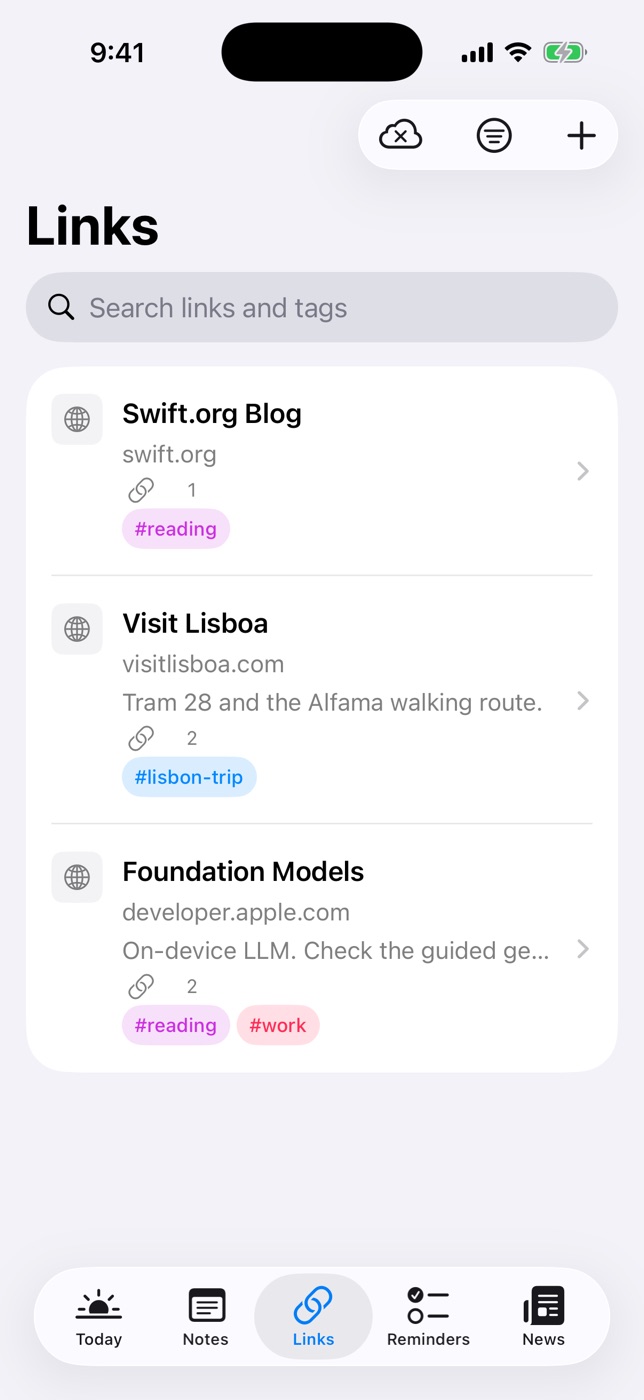
Daily Dash isn't only a read-later app. It's a daily dashboard for your calendar, reminders, notes, news and saved links on iPhone, iPad, Mac and Apple Watch. But its Links tab was built to do the Pocket job well, and it ticks the boxes above:
- Offline by default. When you save a link, Daily Dash fetches its title and icon and saves the article's text and images on the device. Tap Read for the clean reader view, or Open Link for the full page.
- No account. Your links sync through your own private iCloud. There's no Daily Dash server holding them, so there's no company account to lose.
- On-device summaries. Recent links get a short summary under the title, written on your device, which makes the weekly prune fast.
- Notes, tags and connections. Every link has its own rich-text note. Tag it with the same tags you use for notes, reminders and feeds, and connect it to the note or reminder it belongs to. The trip article sits right next to the trip plan.
- News to Links in one tap. If you follow feeds in Daily Dash's News tab, save any story to Links from the reader to keep it for good.
Saving is simple: tap + in Links and paste a URL, or save a story from the News reader. There's no import tool for an old Pocket export, so think of the switch as a fresh start: re-add the handful of articles you genuinely still want, and let the rest go. Most people find that list is much shorter than they feared.
Keep your reading next to your day
Daily Dash saves links for offline reading, summarises them on your device and syncs through your own iCloud. No account, no ads, no tracking. See how Links works →
A simple Daily Dash reading routine
- Save with a note. Paste the link, then write one line on why.
- Tag it. Use a tag you already have, like work or trip, so it shows up with everything else on that tag.
- Read offline in your slot. Open Links on the commute and tap Read. No signal needed.
- Prune on Sunday. Scan the summaries and delete what you won't read.
FAQ
Is Pocket still available?
No. Mozilla shut it down in July 2025, and data that hadn't been exported was deleted in November 2025.
What's the best free Pocket alternative?
It depends on how you read. Instapaper is the closest swap, Raindrop.io suits heavy bookmarkers, and Readwise Reader suits people who highlight a lot. If you want saved articles next to your calendar, reminders and notes, Daily Dash keeps offline copies in your own iCloud.
Can I read saved articles offline on iPhone?
Yes, as long as the app saves a copy and not just the link. Daily Dash stores each link's text and images on the device.
Can I import my Pocket export into Daily Dash?
Not currently. Add the articles you still care about by pasting their links into the Links tab.
How do I stop my list from growing forever?
Give reading a fixed slot, cap the list, and prune weekly. Anything you've skipped twice probably isn't worth reading.