Blog › Reading
How to read articles offline on iPhone
The seatbelt sign goes on, the Wi-Fi costs more than lunch, and the long read you were saving for this exact moment shows a spinning wheel. Reading offline on an iPhone is easy once you know which tools actually store the page and which ones only store a link. Here's how to do it with what's already on your phone, how to make it effortless, and a checklist to run before you board.
A link is not a copy
Most of the ways we “save” things on a phone only save an address. A bookmark, a starred tweet, a link sent to yourself in Messages, a tab left open in Safari: all of them need the internet to show you anything. The article still lives on someone else's server, and you're just keeping a note of where.
Reading offline means keeping a copy: the text, and ideally the images, stored on your device. There are three good ways to get one on iPhone:
- An offline Reading List item in Safari.
- A PDF of the page, saved to Files or Books.
- A reader app that downloads a clean copy when you save the link.
Each has its place. The first two are built in and free. The third is what you want if you save things often, because it removes the “did I remember to download it?” step entirely.
Offline reading with Safari Reading List
Safari's Reading List has been around for years and it's still underrated. To make it work offline:
- Open Settings, find Safari (under Apps on recent versions of iOS), and turn on the option to automatically save Reading List items for offline reading.
- In Safari, open an article, tap Share, then Add to Reading List.
- To check or fix an older item, open Reading List from the Bookmarks button, long-press the item and choose Save Offline.
Two catches. First, the save happens in the background, so add things while you're still on a good connection, not at the gate with one bar. Second, some modern sites load their text with scripts, and the offline copy can come back as an empty page. Open each item once before you leave. If the text shows up in Reader view, you're fine.
Save a web page as a PDF
A PDF is the most portable offline copy. It opens in any app, never expires, and survives the site changing or disappearing. It's the right choice for anything you'll need to reference later: a recipe, instructions, a policy document, a long essay you want to annotate.
- Open the page in Safari. Tap the Aa button and choose Show Reader to strip out menus and ads first.
- Tap Share, then Options at the top of the share sheet, and pick PDF.
- Choose Save to Files and pick a folder, or send it to Books, which keeps PDFs in a tidy library.
The downside is friction. It's four or five taps per article, the PDF has fixed page breaks that can be awkward on a phone screen, and a folder of PDFs named after page titles quickly becomes its own mess. Great for keepers. Tedious for the ten things you want to skim on a train.
Let an app do it for you
If you save articles most days, the best system is one where saving and downloading are the same action. That's what read-later apps are for. We covered how to choose one in our guide to the best Pocket alternative; here we'll focus on the offline part, using Daily Dash as the example.
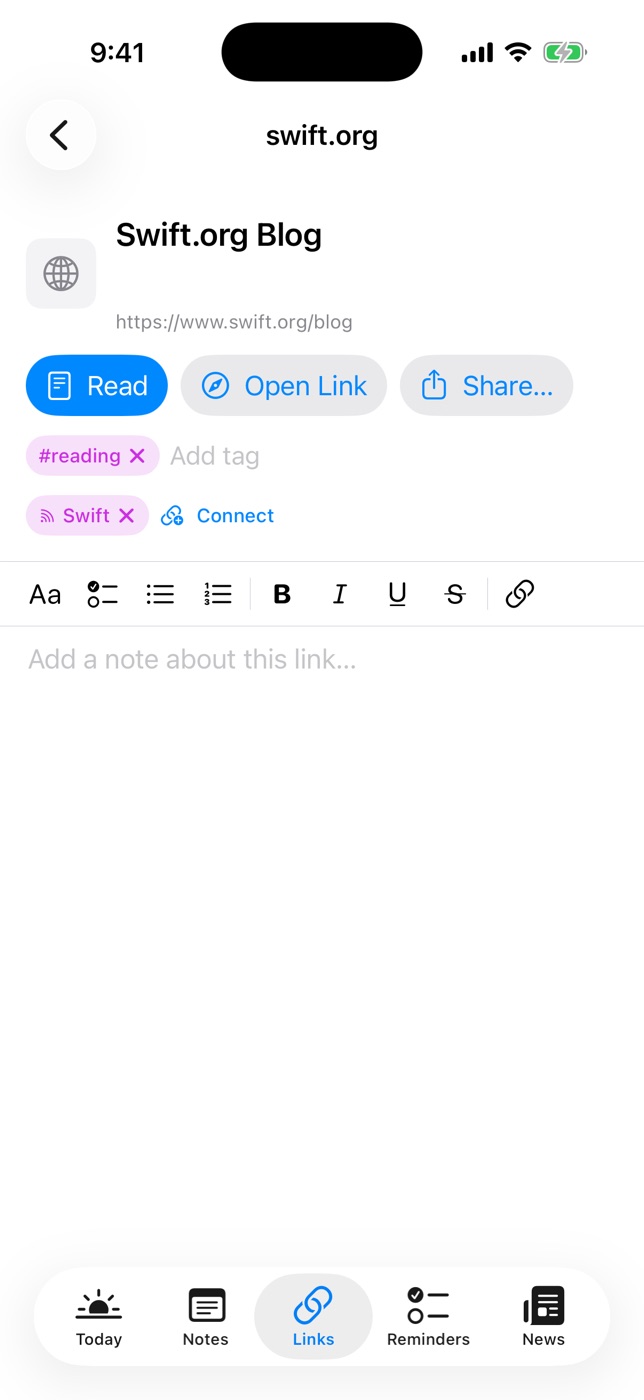
Links: saved once, readable anywhere
In Daily Dash, tap + in the Links tab and paste a URL. The title and icon are fetched for you, and the article's text and a few of its images are saved on the device. On the plane, tap Read and you get a clean reader view from that stored copy. No spinner, no “you're offline” page.
Because your library syncs through iCloud, a link you save on your Mac at your desk shows up on your iPhone too, and each device fetches its own offline copy. Recent links also get a short summary written on your device, which is handy for deciding what to read first when you've got forty minutes and twelve articles.
News: the reader works in airplane mode
If you follow sites through RSS or Google News topics (see our RSS guide), Daily Dash saves new stories in the background as they arrive, following Google News links through to the publisher's article. The News reader opens those stories without a connection.
Offline copies of news stories are kept for 7 days and then dropped to save space, while the headlines stay. If a story is worth keeping longer, tap Save to Links in the reader and it moves into your permanent library.

Pack your reading with Daily Dash
Save links and follow feeds, and everything's readable offline, with your calendar, reminders and notes on the same screen. No account, no ads, synced through your own iCloud. See how Links works →
The pre-flight checklist
Offline copies download in the background, which means the one moment they fail is when you leave it until the last minute. Run this the evening before, or while you're still on home Wi-Fi:
- Save the long reads. Add the articles you've been putting off to your Reading List or read-later app.
- Open your read-later app and let it finish syncing, so every device has its copies.
- Refresh your feeds. Pull down in News so today's stories are fetched and saved.
- Spot-check two items in airplane mode. Turn it on for ten seconds, open a couple of saved articles, and turn it off again. This catches the blank-page problem while you can still fix it.
- Download media. Podcasts, music playlists and shows in the apps you use for them all need an explicit download.
- Save offline maps for your destination in Apple Maps, so you can find the hotel on arrival before your data plan kicks in.
- Grab your documents. Boarding passes in Wallet, booking confirmations as PDFs in Files, and any notes you'll need at the other end.
- Charge everything and pack the cable where you can reach it without standing up.
If you use Daily Dash, you can turn this into a note with a checklist and reuse it every trip. Better still, add a reminder the night before: “Pack reading for the flight tomorrow at 8pm”.
Other things to do without Wi-Fi
A flight is one of the few times nobody can reach you. That makes it good for more than catching up on articles:
- Clear your read-later list. Read what matters, delete what doesn't. Landing with an empty queue feels great.
- Do a weekly review. It works perfectly offline, and a plane seat is oddly good for thinking. Our weekly review template takes about 30 minutes.
- Write. Draft the blog post, the proposal, or the letter you've been avoiding. Notes you write offline sync when you land.
- Plan the trip. Sketch each day, list what you want to see, and jot down reminders for the trip. Searching the map for a place needs a connection, so pin those before takeoff.
- Tidy your notes. Merge duplicates, nest loose pages under the right parent, and tag what's untagged.
- Rest. Not everything has to be productive. Looking out of the window counts.
FAQ
Does Safari Reading List work offline?
Yes, if the item was saved for offline reading. Turn on automatic offline saving in Safari's settings, or long-press an item and choose Save Offline. Open it once while still online to confirm it downloaded.
Why does a saved page show up blank offline?
Many sites load their text with scripts after the page opens, so a quick save captures an empty shell. A reader-mode copy or a PDF of Reader view stores the article text itself and is much more reliable.
How much storage do offline articles use?
Text is tiny. Images are what add up, which is why reader apps usually keep a few images per article rather than every one, and why Daily Dash drops offline copies of news stories after a week.
Can I read news offline on a plane?
Yes, with an app that saves stories in advance. In Daily Dash, stories from the feeds you follow are saved in the background, so refresh before you board and the reader works in airplane mode.