 Daily Dash
Blog › Reading
A read-later app without an account
In the past two years, two popular read-later services closed and took their users' libraries with them. If you've been burned once, the question for your next app is less about features and more about where your saved articles live. Here's why accounts matter, what to look for in a private read-later app, and the options on iPhone that keep everything in your own iCloud.
Why the account matters
Most read-later apps work like this: you sign up, the app saves each article to the company's servers, and your devices sync from there. It's convenient, and it works everywhere, including the web. It also means your library exists only as long as that service does.
- Omnivore, a free, open-source favourite, shut down on 15 November 2024 when its team joined ElevenLabs. User data was deleted.
- Pocket, owned by Mozilla, shut down on 8 July 2025. Users could export until 8 October 2025. After that, the saves were gone.
People who exported in time still had to find a new home for a file of links, and many missed the window entirely. Services close. The lesson is structural: if a company holds your only copy, the company decides how long you keep it.
An app that stores your list on your own devices and syncs through your own iCloud changes that. There's no server to switch off. If the developer stops updating the app, your saves are still on your phone, and you can keep reading them while you move on.
What to look for
1. No separate account
The simplest test: can you save your first article without signing up? If yes, the app almost certainly keeps data on the device and syncs through iCloud. If it asks for an email first, your list lives on its servers.
2. Sync through your private iCloud
Apps that sync through your private iCloud database store your list in your iCloud account. The developer can't read it, and there's no company copy to lose. The trade-off is that sync only works between Apple devices signed in to the same Apple Account.
3. Real offline copies
Saving a link doesn't save the article. Check that the app stores the article text, and ideally images, on the device. That covers planes and tunnels, and it protects you from link rot when a page moves or goes behind a paywall. Our offline reading guide shows how to test it with airplane mode.
4. A way out
Even a private app should let you get things out, whether that's exporting highlights, sharing links one by one, or a full export. Know which one you're getting.
5. A pricing model you understand
A one-time purchase, a subscription and a free app funded some other way all have different long-term incentives. None is automatically better. Pick one where you understand how the developer is paid.
Options on iPhone
As of September 2026, these are the main read-later options on iPhone that need no separate account. For account-based apps such as Instapaper and Matter, see our read-later comparison.
Safari Reading List
Already on your iPhone. In Safari, tap the Share button and choose Add to Reading List. It syncs through iCloud to your other Apple devices, and items can be saved for offline reading: turn on automatic offline saving for Reading List in Safari's settings, or long-press an item and choose Save Offline.
It's free and has no setup. It's also a plain list, without tags or notes, so it works best for a short queue you clear often.
GoodLinks
A dedicated read-later app for iPhone, iPad, Mac and Apple Vision Pro. It syncs links, tags, highlights and reading position through iCloud with no account, saves the article text for offline reading, and can export highlights as Markdown. It can also import from Pocket, Instapaper, Omnivore and others, which helps if you have an old export file. It's a one-time purchase on the App Store, with an optional yearly upgrade for new features. If reading is your main use, it's an excellent choice.
Daily Dash
Daily Dash isn't a dedicated reader. It's an all-in-one app for your day, and saved links are one of its tabs. That's a good fit if you'd rather have fewer apps. More below.
Daily Dash's Links
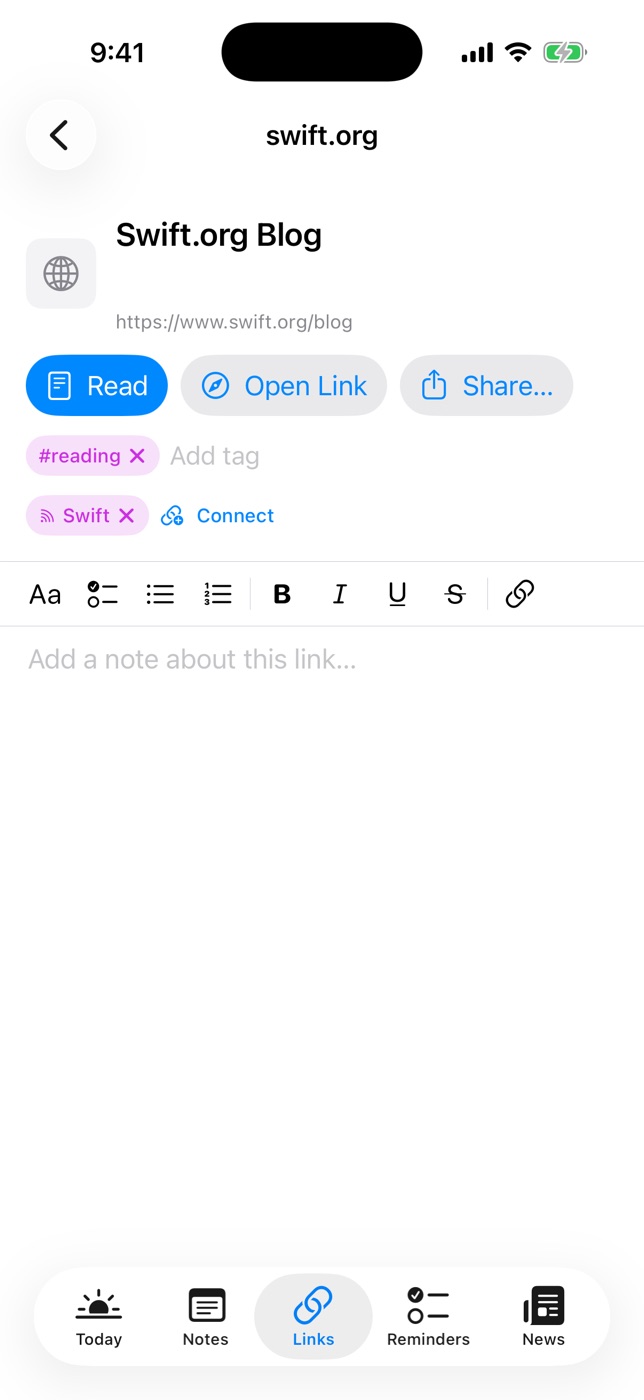
Daily Dash has no account at all. Your library, including saved links, syncs through your private iCloud, and there are no ads or analytics. Here's how Links works:
- Save: tap + in Links and paste a URL, or save a story from the News reader. The title and icon are fetched for you. There's no share extension yet, so copy the link from Safari first.
- Read offline: each link's text and a few images are saved on the device. Tap Read for the clean reader, or Open Link for the full page. Offline copies are fetched on each device, so your iPad can read offline too.
- Summaries: recent links get a short summary under the title, written on your device.
- Context: add a note, tags, and connections to related notes or reminders.
There's no import tool, so an old Pocket or Omnivore export can't be loaded in. Open the file, pick the links you still want, and paste them in. There are also no highlights or text-to-speech. What you get instead is your reading next to your calendar, reminders, notes and RSS news, all tagged the same way.
Read later, no sign-up
Daily Dash is coming soon to the App Store for iPhone, iPad, Mac and Apple Watch. Your library lives in your own iCloud. Read the privacy policy →
Protect your list, whatever you use
Even with a private app, a few habits keep a shutdown from hurting:
- Keep the list short. A list of 30 articles is easy to move. A list of 3,000 isn't, and you weren't going to read them anyway. Our Pocket alternative guide has a weekly prune routine.
- Save the important ones twice. If an article really matters, save it as a PDF to Files as well. Your notes about it can live somewhere you control.
- Watch for announcements. When a service announces it's closing, export that week, not at the deadline.
- Check your iCloud storage. iCloud-based apps stop syncing when storage is full. Settings shows how much you have left.
FAQ
Is there a read-later app that doesn't need an account?
Yes. Safari Reading List, GoodLinks and Daily Dash all work without a separate account and sync through your own iCloud.
What happens to my articles if a read-later app shuts down?
With an account-based service, the library can go with it, as happened with Pocket and Omnivore. With an iCloud-based app, it stays in your iCloud and on your devices.
Is iCloud sync private?
Apps using your private iCloud database keep data in your iCloud account, where the developer can't read it.
Can I read saved articles offline without an account?
Yes. All three options above can save article text for offline reading.