 Daily Dash
Nested notes, stored as Markdown
Notes in Daily Dash are pages, and pages can live inside other pages, like a notebook with chapters. You write in a rich-text editor, and everything is stored as plain Markdown you can view, edit and export. Private pages can be locked behind a PIN and Face ID.
Pages inside pages
Tap the compose button to start a page and give it an emoji icon if you like. Drag pages to reorder or nest them, or use Move To. Long-press a page for Add Page Inside, Duplicate and Add to Favorites, which pins it to the top of the list. Breadcrumbs at the top of a page take you back up the tree.
A project page can hold meeting pages, a trip page can hold a packing list and an itinerary, and a journal can have a page per month.
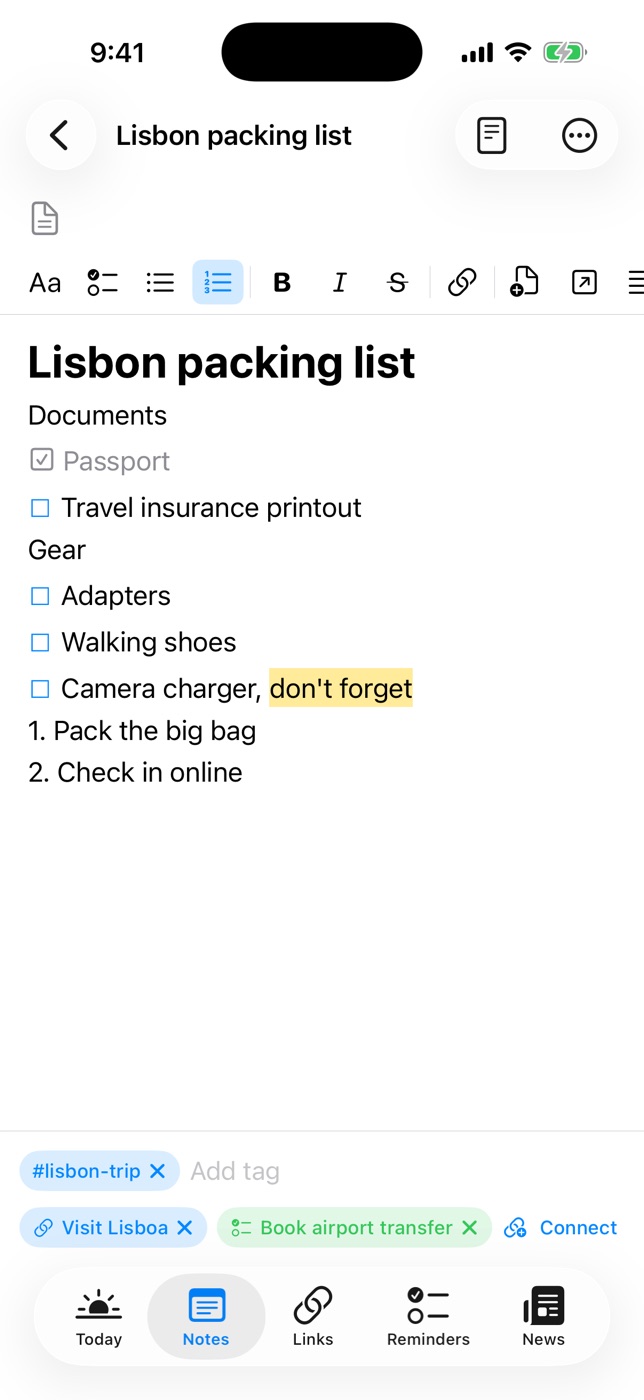
Writing with slash commands
Type / at the start of a line for headings, bulleted, numbered and check lists, quotes, code, a divider, a new page inside this one, or a link to another page. The same blocks are buttons on the Aa format panel.
Formatting covers title, heading and subheading styles, bold, italic, strikethrough, highlight, inline code, links and indenting. Everything you can apply is something Markdown can store, so there's no underline or text colour in notes. On iPad and Mac with a keyboard, Apple Notes shortcuts work, like ⇧⌘L for a checklist. The keyboard shortcuts list has the rest.
Markdown view and export
Notes are stored as Markdown. Use the document button in the toolbar to switch to the source, styled as you type. When you want a note somewhere else, share it as Markdown (with tags and dates as front matter) or as a paginated PDF.
Organise, backlinks and trash
- Embedded pages show as tappable blocks whose titles stay current when you rename them.
- Backlinks: each page lists the pages that link to it.
- Tags and connections: tag a page, or connect it to a link, reminder or calendar event. See tags and the graph.
- Search the text and tags of your pages from the top of the list, or use Filter by Tag.
- Trash: deleting a page moves it and its sub-pages to the Trash for 30 days. Restore it, Delete Forever, or Empty Trash.
Private notes with Face ID
Some pages are nobody else's business: a journal, health notes, account recovery codes. To lock one:
- Open Settings (the gear on Today, or the Settings window on Mac) and set a notes PIN. Turn on Face ID or Touch ID if you like.
- Long-press a note and choose Lock Page, or use the lock menu in the note's toolbar.
- Unlock with Face ID, Touch ID or your PIN. Locked notes lock again when the app goes to the background, or right away with Lock Now.
The text of a locked page is encrypted with AES-GCM, using a key protected by your PIN. The title stays visible in the list so you can find it. The PIN syncs through iCloud, so it unlocks your notes on every device, and after too many wrong tries the app makes you wait.
More on this in how to lock notes on iPhone.

Notes that stay yours
Daily Dash is coming soon to the App Store for iPhone, iPad, Mac and Apple Watch. It needs iOS 26 and later, iPadOS 26 and later, macOS 26 and later, or watchOS. No account, no ads, no analytics. Read the notes guide →
FAQ
Are Daily Dash notes stored as Markdown?
Yes. You write in a rich-text editor, notes are stored as Markdown, and a Markdown view shows the source. You can export any note as Markdown with front matter, or as a PDF.
Why can't I underline text in a note?
Everything you can apply in a note is something Markdown can store, so underline and text colours are left out. Notes on links do support them.
How are locked notes protected?
The text is encrypted with AES-GCM using a key protected by your notes PIN. You unlock with Face ID, Touch ID or the PIN. If you forget the PIN, the notes can't be recovered.
Can I import notes from another app?
No, Daily Dash has no import. Start with the notes you use now and paste in what you need.