Blog › Notes
How to lock notes on iPhone (and keep a truly private journal)
Your phone gets handed to kids, borrowed for a map, left unlocked on the kitchen counter. Most of what's on it doesn't matter. A few notes do: a journal, a medical history, gift ideas for the person sitting next to you. Here's how to lock notes on iPhone properly, what locking does and doesn't protect, and how to build a journaling habit you can be honest in.
What's worth locking
Your iPhone passcode protects the whole device from strangers. It does nothing once the phone is unlocked and in someone else's hands for a minute. That's the gap a locked note fills. Good candidates:
- A journal, where the whole point is writing things you wouldn't say out loud.
- Health notes: symptoms, medication changes, questions for your doctor.
- Money details: account numbers for a tax return, the plan for paying off a card.
- Gift and surprise plans, especially on a shared iPad.
- Work notes about people: performance reviews, interview feedback, a difficult conversation you're preparing for.
What's not a good fit: passwords. A locked note is better than a plain one, but a proper password manager (including the Passwords app built into iOS) fills them in for you, warns about reuse, and is designed for exactly that job.
How to lock a note in Apple Notes
Since iOS 16, Apple Notes gives you two ways to lock: with your iPhone passcode, or with a separate Notes password. Either way you can unlock with Face ID or Touch ID.
- Open Notes and open the note you want to protect.
- Tap the More button (the circle with three dots), then tap Lock.
- The first time, choose Use iPhone Passcode or Create Password. If you create a password, add a hint you'll actually understand in two years.
- Tap the lock icon at the top to lock the note now. It also locks on its own when you close the app or your phone sleeps.
To change the method later, go to Settings › Apps › Notes › Password.
Passcode or separate password?
Using your iPhone passcode is simpler and you can't forget it without forgetting your phone. The catch: anyone who knows your phone passcode (a partner, a kid who watched you type it) can open your locked notes too.
A separate Notes password closes that gap, at a cost. If you forget a custom Notes password, the locked notes are gone. They're end-to-end encrypted, so Apple can't reset it for you. Write the password down somewhere safe, or store it in your password manager.
What locking hides, and what it doesn't
This is the part most guides skip. In Apple Notes, locking hides the body of a note, but the title stays visible in the notes list. The title is the first line of the note. So a locked note that starts with “Why I'm thinking of leaving my job” protects everything except the one sentence that matters.
The fix is simple: give sensitive notes a boring first line. “Journal — March” or just a date gives nothing away.
A few other things to know:
- Locked notes aren't searchable by their contents, only by title. That's a feature, but it means you'll want clear titles.
- Some content can't be locked. Notes with certain attachments, or shared notes, can't be locked in Apple Notes.
- Locking isn't the same as hiding. Someone scrolling your notes will see that a locked note exists.
Locking pages in Daily Dash
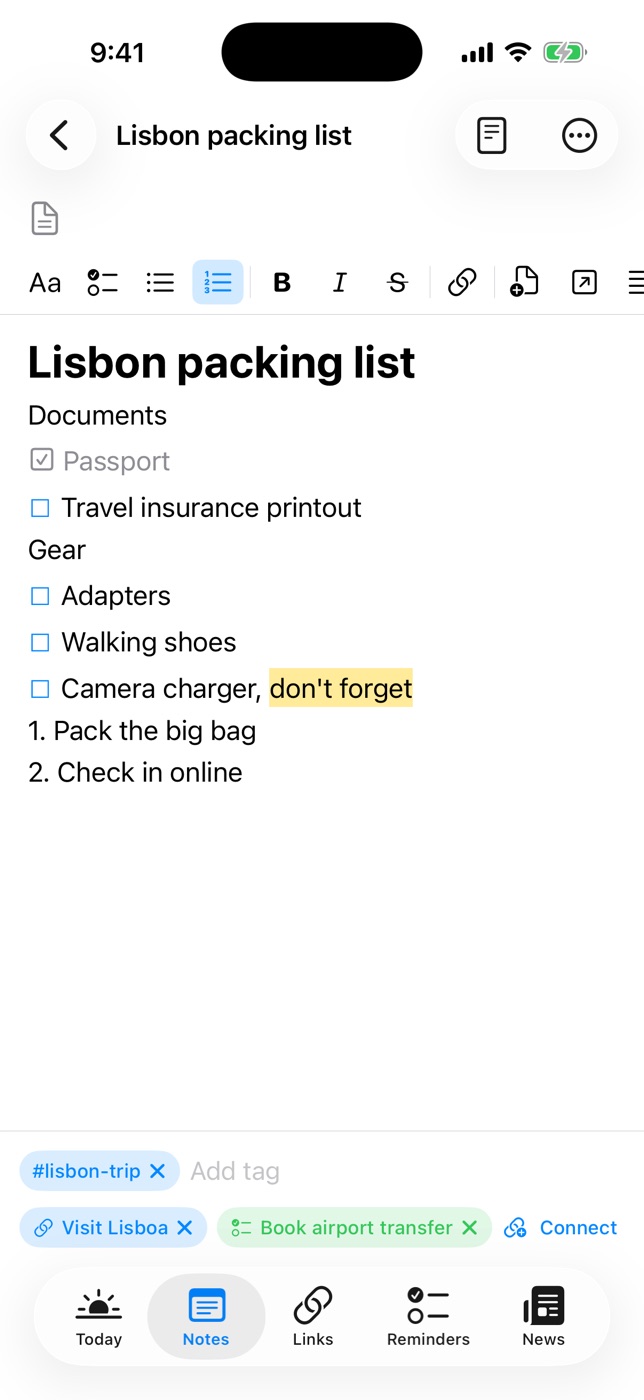
If you keep your notes in Daily Dash, locking works along the same lines, with a single PIN for all your locked pages:
- Open Settings (the gear at the top of Today, or the Settings window on a Mac) and set a notes PIN.
- If you like, turn on Face ID or Touch ID so you don't type the PIN every time.
- In the Notes list, long-press a page and choose Lock Page. You can also use the lock menu in the note's toolbar.
- To read it, unlock with Face ID, Touch ID or your PIN. Locked pages lock again when the app goes to the background, so switching apps is enough to close them.
Under the hood, a locked note's contents are encrypted with AES-GCM, using a key that's protected by your PIN. Your library syncs through your own private iCloud, and Daily Dash has no servers or accounts of its own, so there's no copy of your journal sitting anywhere else. Like Apple Notes, a locked page keeps its title in the clear so you can find it in the list; only the text is encrypted.
How to keep a private journal on your iPhone
Knowing a journal is locked changes what you write in it. Here's a setup that makes the habit easy to keep.
1. One parent page, one page per month
A single endless note gets slow to scroll and hard to revisit. A new note per day scatters. The middle ground is a page per month. In Daily Dash, make a Journal page, then type / and add a sub-page for each month. Breadcrumbs take you back up, and the parent page shows each month as a tappable block.
2. Lock the pages that need it
Lock each month's page. Keep the first line neutral, like “September 2026”, so nothing sensitive shows in the list.
3. Use a tiny template
A blank page is intimidating at 11 PM. Three prompts are enough:
- What happened? Two or three lines of facts.
- How did it feel? The part you'd never post anywhere.
- What do I want tomorrow? One thing, not a list.
Paste them under a heading for each day. Some days you'll write one word per prompt. That still counts.
4. Pick a trigger, not a time
“Journal at 9 PM” loses to whatever you're doing at 9 PM. “Journal when I get into bed” is tied to something you do every night. If you need a nudge, a location reminder for arriving home works well: “Write a few lines tonight when I get home.”
5. Tag, then look back
Tags are shared across everything in Daily Dash. Tag entries you'll want again (#health, #ideas) and a single tap on the tag later shows every page that carries it. Once a month, read the previous month. That's where journaling pays off: patterns you'd never notice day to day.

A journal that lives next to your day
Daily Dash keeps notes, reminders, calendar and saved links in one place, with locked pages encrypted by your PIN. No account, no ads, no tracking. See how locking works →
Five habits for notes that stay private
- Keep titles boring. Anything that shows in a list should be safe to show.
- Lock before you need to. Lock the journal the day you start it, not the day someone picks up your phone.
- Store your PIN or password somewhere safe. A password manager is the obvious place. A locked note you can't open is the same as a deleted one.
- Be careful with exports. Exporting a note to Markdown or PDF creates a copy that isn't locked. Delete it once you're done with it.
- Mind screenshots and shared devices. Screenshots go to your photo library, and a shared iPad signed into your iCloud can see your notes. Locking still protects the body, but know what else is visible.
FAQ
Can I recover a locked note if I forget the password?
For Apple Notes with a separate password: no. With the iPhone passcode option you unlock with your passcode. For Daily Dash: no, a forgotten PIN means the locked notes can't be decrypted by anyone.
Does locking a note hide its title?
No. In Apple Notes the first line stays visible, and in Daily Dash the page title does. Keep titles neutral.
Can I use Face ID to unlock notes?
Yes, in both Apple Notes and Daily Dash, once you've set a passcode, password or PIN.
Can I lock a whole folder?
Apple Notes locks notes individually. Daily Dash locks individual pages too. In both, the simplest approach is to lock each page that holds something sensitive.
Are locked notes safe in iCloud?
Apple Notes' locked notes are end-to-end encrypted. Daily Dash encrypts a locked note's contents on your device before it syncs to your private iCloud database, so iCloud only ever stores the encrypted version.