 Daily Dash
Home › Compare › Apple Reminders
Daily Dash vs Apple Reminders
This isn't really an either/or. Daily Dash reads your Apple Reminders and shows them on its Today screen, next to your calendar and its own reminders, and you can tick them off there. So the useful question is which app should hold which kind of reminder. Here's an honest look at both, as of September 2026.
The short answer
- Pick Apple Reminders if you need repeating reminders, shared lists with family or housemates, subtasks, grocery lists, or Siri to add things hands-free.
- Pick Daily Dash if you want one screen with your calendar, reminders, notes, links and news, reminders that can ring like an alarm, and one set of tags across everything.
- Use both if you already have a system in Apple Reminders. Daily Dash shows those reminders on Today, so you don't have to move anything.
Side by side
| Apple Reminders | Daily Dash | |
|---|---|---|
| Repeating reminders | Yes | No (use Apple Reminders for these) |
| Location alerts | Yes, arriving or leaving, plus getting in or out of the car | Yes, arriving or leaving a saved place, your location or a pin |
| Natural-language quick add | With Apple Intelligence in iOS 27, on supported iPhones | Built in: “Call mom tomorrow at 5pm #family !!” |
| Tags | Yes, plus Smart Lists | Yes, shared with notes, links, feeds and events |
| Shared lists | Yes | No |
| Subtasks and sections | Yes | No |
| Calendar on the same screen | No (separate Calendar app) | Yes, on Today |
| Shows the other app's reminders | No | Yes, due and overdue Apple Reminders on Today |
| Apple Watch | Yes | Yes, read-only |
| Siri | Yes | No |
| Account | Your Apple Account, iCloud | None; your private iCloud |
Repeating and shared tasks
This is where Apple Reminders wins outright. Set a date or time, tap Repeat, and a reminder comes back daily, weekly, monthly or on a custom schedule. Lists can be shared, so a household grocery list or a team checklist stays in sync for everyone. Grocery lists group items into sections like produce and dairy automatically, and subtasks and sections help with bigger projects.
Daily Dash's own reminders don't repeat, and there are no shared lists. We'd rather say that plainly than have you find out on bin day. If a task happens on a schedule, keep it in Apple Reminders. It still appears on Daily Dash's Today screen when it's due.
Fast capture
Daily Dash's quick-add field understands dates, times, tags, priorities and places as you type, with a live preview before you save:
- “Submit expenses next Friday” → next Friday.
- “Check the oven in 20 min” → 20 minutes from now.
- “Buy milk when I leave work #errands” → alerts as you leave your saved place “Work”, tagged errands.
Anything without a date is due today, so nothing gets lost in an undated list. See the full syntax in the Reminders guide.
Apple Reminders has Siri, which Daily Dash doesn't, and in iOS 27 Apple Intelligence can pull dates and other details out of a typed description on supported iPhones. If you add most reminders by voice, Apple's app is the easier home.
Location reminders
Both apps can remind you when you arrive at or leave a place. Apple Reminders can also trigger when you get in or out of the car.
In Daily Dash you pick a saved place, your current location, or search and drop a pin, then drag the radius to set how big “there” is. Saved places like Home, Work and the gym sync through iCloud, and quick add recognises them by name. A location reminder alerts every time you arrive or leave until you mark it done. iOS allows 20 monitored places, so Daily Dash keeps the 20 nearest. Macs can't trigger by location, but a reminder set on a Mac alerts on your iPhone. More in our guide to location-based reminders.
Seeing your whole day
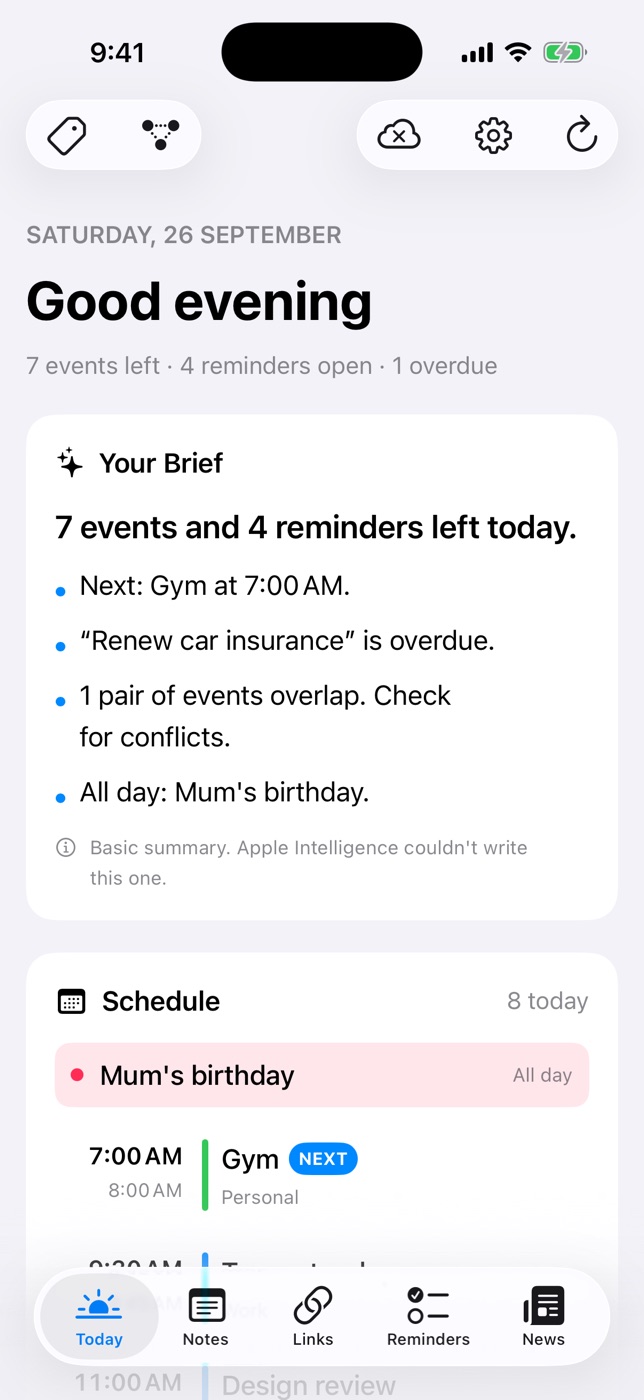
Apple Reminders is a list app. Your meetings live in Calendar, your notes in Notes, and you switch between them.
Daily Dash's Today screen puts them in one place: a short brief written on your device, every event from all your calendars with overlaps flagged, then reminders due today and overdue from both Apple Reminders and Daily Dash. Tick an Apple Reminder off here and it's marked done in Apple's app too.
Daily Dash reminders also carry tags and connections shared with the rest of your library. A reminder to book a hotel can link to the trip note, the booking link and the flight event. Long-press an Apple Reminder on Today to tag or connect it the same way.
For alerts that must not be missed, turn on Ring as Alarm. The reminder rings like a Clock alarm, through silent mode and Focus. It works for timed reminders on iPhone and iPad; on a Mac the same reminder arrives as a normal notification.
Using both together
A split that works well for most people:
- Apple Reminders for anything that repeats, anything shared, and grocery lists.
- Daily Dash reminders for one-off tasks you type quickly, place-based errands, and anything that should ring like an alarm or connect to a note or link.
- Daily Dash's Today screen as the place you look each morning, since it shows both.
If you follow Getting Things Done, our GTD on iPhone guide maps the whole method onto this setup.
Keep Apple Reminders. Add a daily view.
Daily Dash is coming soon to the App Store for iPhone, iPad, Mac and Apple Watch (iOS 26 and later). No account, no ads, no tracking. See how reminders work →
FAQ
Does Daily Dash replace Apple Reminders?
It doesn't have to. It shows your due and overdue Apple Reminders on Today and lets you tick them off, so you can keep using Apple's app for repeating and shared tasks.
Can Daily Dash reminders repeat?
No. Use a repeating Apple Reminder for anything on a schedule. It will still appear on Today.
If I tick off an Apple Reminder in Daily Dash, is it done in Reminders too?
Yes, it's marked done in Apple's Reminders app as well.
Can I tag Apple Reminders in Daily Dash?
Yes. Long-press one on Today and choose Tags & Connections…. These tags live in Daily Dash, separate from tags in Apple's app.