 Daily Dash
Blog › Apps
One app instead of Reminders, Notes, Pocket and an RSS reader
A typical iPhone setup has one app for to-dos, one for notes, one for articles you'll read later, and one for news. Each is fine on its own. Together they mean four places to check and four sets of folders. Here's a practical way to fold them into one all-in-one app, what you should still keep in Apple's apps, and where the trade-offs are.
Why consolidate at all
The cost of four apps isn't storage. It's the checking. Each app has its own inbox, and each one needs a visit before you know what's going on. Things fall through the gaps: the article you saved for a meeting lives in one app, the meeting in another, the reminder to read it in a third.
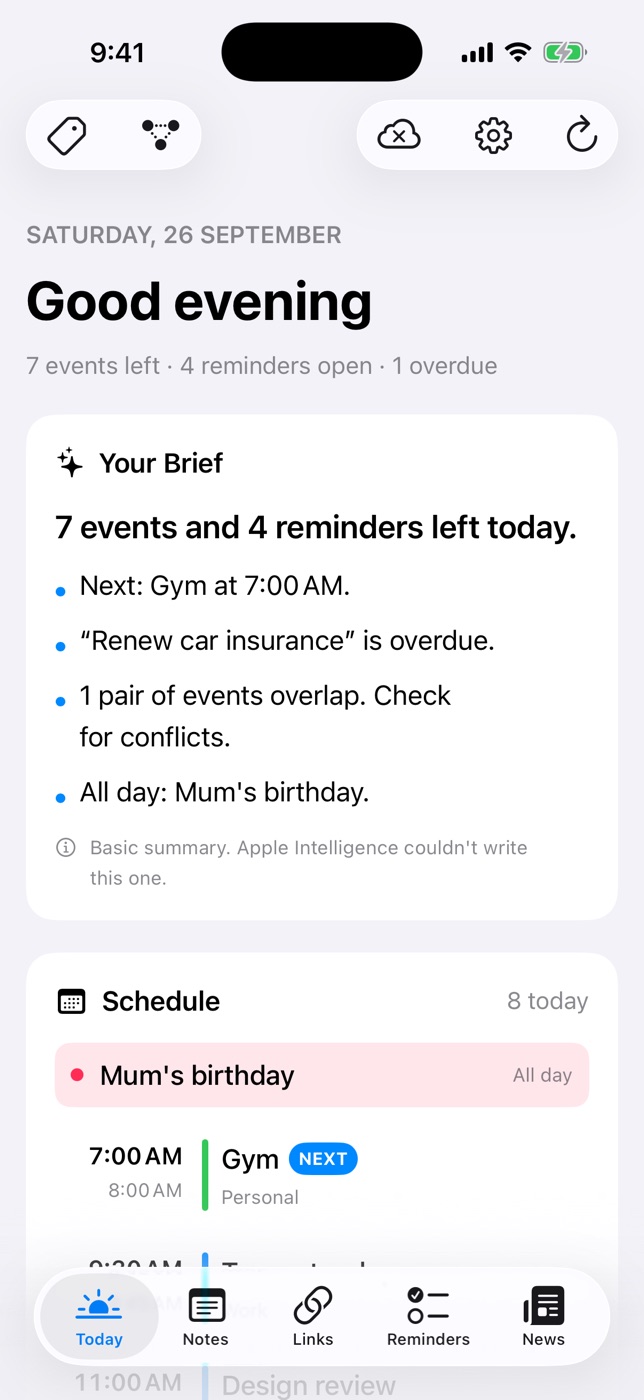
One app with one daily view fixes that. You open it, you see the day, and everything related to a project carries the same tag. If you've already done a digital declutter, this is the next step.
Before you start, pick a bar the new setup must clear: “I can see everything I need for today on one screen.” If a move doesn't help with that, skip it.
What to keep in Apple's apps
Consolidating doesn't mean deleting Apple's apps. Some of them are better as a data source than as a place you visit.
- Calendar stays. Keep your events in iCloud, Google or Exchange calendars as usual. Daily Dash reads every calendar through the system and shows today's events on its Today screen, with the next one marked and overlaps flagged.
- Apple Reminders stays for repeats and shared lists. Daily Dash's own reminders don't repeat and can't be shared. Keep weekly chores, bills and the family grocery list in Apple Reminders. They still appear on Today when they're due, and you can tick them off there.
- Apple Notes stays for scans and sketches. Daily Dash notes are text pages. Receipts, handwritten notes and photo-heavy notes are better in Apple Notes.
We've written up the details in Daily Dash vs Apple Reminders and Daily Dash vs Apple Notes.
The walkthrough, one app at a time
Give yourself an hour. Do it in this order, because each step makes the next one easier.
1. Reminders: move one-offs, leave repeats
Open Apple Reminders and sort what's there into three piles:
- Repeating or shared: leave them. They'll show up in Daily Dash anyway.
- One-off tasks: either leave them too, or retype the ones you want as Daily Dash reminders using quick add. “Renew passport next Monday !!!” sets the date and a high priority in one line.
- Stale: anything overdue by a month is a decision, not a task. Delete it or give it a real date.
Place-based errands are a good reason to move a task. Type “Buy stamps when I leave work” and it alerts as you leave your saved place. See the location reminders guide.
2. Notes: move what you use, archive the rest
There's no import tool, and that's fine. Most note libraries are 90% archive. Open Apple Notes, sort by date edited, and copy over only the notes you've touched in the last month or two: current projects, lists you maintain, a journal.
Use nesting to rebuild structure as you go. A “Work” page can hold one page per project, each with its own meeting notes inside. Type / for headings, checklists or a new page inside this one. Everything is stored as Markdown, so it's easy to take elsewhere later. The notes guide covers the editor.
3. Read-later: start fresh
If you used Pocket, it shut down in July 2025 and its export window closed in October 2025. If you used Omnivore, it closed in November 2024. Either way you may be starting from a list, an export file, or nothing.
Daily Dash can't import those exports. Skim the list for the ten or twenty links you still care about and paste each one into Links with +. Each link's text and a few images are saved for reading offline, and recent links get a short summary written on your device. Add a note on why you saved it. Our Pocket alternative guide has a routine for keeping the list short, and this comparison covers dedicated read-later apps if you want deeper features.
4. RSS: re-add your best feeds
If your old reader can show a list of subscriptions, open it next to Daily Dash. In News › Manage Feeds, paste each site's address and Daily Dash finds the RSS, Atom or JSON feed. Only https feeds are supported.
Cap yourself at ten to start. For subjects rather than sites, use Add Topic… to follow a Google News search, like “interest rates” or your town's name. Our Google News RSS guide explains how that works under the hood, and RSS reader on iPhone covers curating a feed list you'll keep up with.
5. Move the icons
Put Daily Dash where your thumb goes on the Home Screen. Move Notes, Reminders and your old reader to the second page or the App Library. You're not deleting them; you're changing which app you open first.
Glue it together with tags
The real payoff comes from tags that work across everything. In Daily Dash one tag, say #kitchen, can sit on a note with measurements, a saved link to a tap you like, a reminder to call the plumber, a calendar event for the fitting, and even an Apple Reminder. Tap the tag and they're all there.
Pick five to ten tags for your main areas: #work, #home, #health, one per active project. Tag as you move things in. Then filter the Today news card by a tag, so the morning shows #work feeds only.
Honest trade-offs
An all-in-one app does many things at once, so each part is simpler than a specialist app. Before you switch, know what you give up:
- No repeating Daily Dash reminders and no shared lists. Apple Reminders covers those.
- Text-only notes. No attachments, scans or drawings.
- No highlights or text-to-speech in Links.
- No share extension or import yet. You save by pasting, and move data by hand.
- No widgets and no Siri. You open the app to see Today. The watch app shows the day, but reminders are read-only there.
- Apple devices only. iPhone, iPad, Mac and Apple Watch, on iOS 26 and later, iPadOS 26 and later and macOS 26 and later.
What you get in return: one screen for the day, one set of tags, and a library that syncs through your own iCloud with no account, no ads and no analytics. If you're still weighing up the category, our daily planner buyer's guide compares the main kinds of planner apps.
Four apps, one screen
Daily Dash is coming soon to the App Store. Calendar, reminders, notes, links and news for iPhone, iPad, Mac and Apple Watch. See how to get started →
FAQ
Is there one app that replaces Reminders, Notes and a read-later app?
Daily Dash combines reminders, notes, saved links and RSS news with your calendar on one Today screen. It works best alongside Apple Calendar and Apple Reminders rather than replacing them.
Should I stop using Apple Reminders?
Not necessarily. Keep it for repeating and shared tasks. They appear on Daily Dash's Today screen when due.
Can I import my Pocket, Notes or RSS subscriptions?
No. Paste in the links you want, copy the notes you use, and re-add feeds by pasting each site's address.
Is an all-in-one app worse than specialist apps?
For some jobs, yes. It wins when the bigger cost is switching between apps to see one day.