Blog › Tips
Digital declutter: how to declutter your iPhone in one afternoon
A cluttered phone doesn't just look messy. Every badge, stray notification and half-used app is a small tug on your attention, and they add up to a device that feels busier than your actual life. Here's a digital declutter you can finish in one afternoon, in the order that makes the biggest difference first.
Why declutter your phone at all
Your phone is the one object you look at more than any other. When it's cluttered, you pay for it constantly: hunting for the app you need, clearing notifications you didn't ask for, opening five apps to answer “what's on today?”
A digital declutter isn't about using your phone less out of guilt. It's about making the phone do its job faster, so you get in, get what you need, and get out. Set aside an afternoon, charge your phone, and go through the steps in order.
Step 1: Delete and offload apps
Start here because everything else gets easier with fewer apps.
- Open Settings › General › iPhone Storage. Each app shows when you last used it.
- Anything you haven't opened in three months is a candidate. Delete apps you'll never need again.
- For apps you use rarely but want to keep (a travel app, the parking app for one city), tap Offload App. The app goes, but its data stays, and its icon remains so you can reinstall with a tap.
- Turn on Offload Unused Apps (Settings › App Store) to have iOS do this automatically when storage runs low.
Be honest about duplicates. Three to-do apps, two note apps and a separate read-later app aren't three systems; they're three places to forget things. We'll come back to this in step 5.
Step 2: Rebuild the Home Screen
The Home Screen decides what you reach for without thinking. Design it on purpose:
- First page: tools only. Camera, Maps, Messages, your calendar or daily app, and a handful of others you use every day for a task. No feeds, no games.
- Move time sinks off the first page. Social apps and video go into the App Library, where you have to search for them. That extra second is often enough to change your mind.
- Hide extra pages. Long-press the Home Screen, tap the page dots, and untick pages you don't need. Everything still lives in the App Library.
- New apps to App Library only. Settings › Home Screen & App Library › App Library Only, so downloads don't creep onto your pages.
- Hide badges you don't act on. A red number on your mail icon is a to-do you didn't write. Turn off Badges per app in Settings › Notifications.
Step 3: Cut notifications
Notifications are the loudest clutter. Go to Settings › Notifications and sort every app into one of three buckets:
| Bucket | Examples | Setting |
|---|---|---|
| Needs me now | Messages from people, calendar alerts, reminders, deliveries | Immediate, with sound |
| Useful, not urgent | News, shopping, most apps | Scheduled Summary |
| Never | Games, promotions, “we miss you” | Off |
Scheduled Summary (Settings › Notifications › Scheduled Summary) is the quiet hero here. Pick one or two times a day, and non-urgent notifications arrive together instead of one by one.
Keep reminders and calendar alerts immediate, and allow them as Time Sensitive so a Focus mode doesn't bury them. The point of decluttering is to make the important alerts stand out, not to miss them.
Step 4: Audit subscriptions
Subscriptions are clutter that costs money. Open Settings › [your name] › Subscriptions to see everything billed through your Apple Account.
- Cancel anything you haven't used in the last month. You can always re-subscribe.
- Look for overlap: two music services, two cloud storage plans, a note app and a second note app.
- Check your card statement for subscriptions paid on the web; they won't show in Settings.
- For the ones you keep, add a reminder a few days before any annual renewal so it never surprises you.
Step 5: Fewer apps to check every day
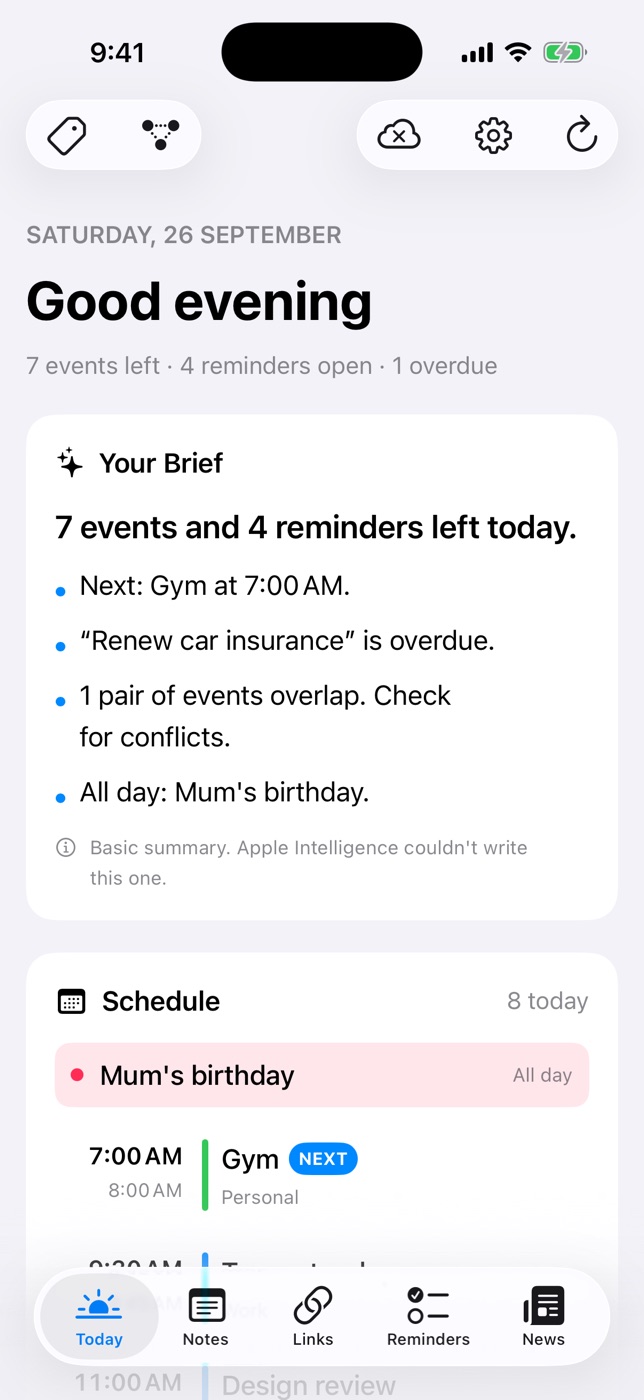
This is the step most declutter guides skip, and it's the one you'll feel every morning. Count the apps you open just to find out what your day looks like. For many people it's calendar, reminders, a to-do app, notes, a read-later app and a news app. Six apps, six chances to get pulled somewhere else.
You don't need to replace them all. You need one place to look. That's what Daily Dash is built for. Its Today screen pulls in:
- Your calendars, read through the system, with the next event marked and overlaps flagged.
- Apple Reminders and Daily Dash's own reminders, due and overdue, tickable right there.
- Top headlines from feeds you chose, which you can narrow to a tag.
- A short brief of the day, written on your device.
Behind Today, the other tabs can absorb several single-purpose apps: nested note pages, a read-later list that saves each page for offline reading, reminders you type in plain English, and an RSS reader. One set of tags is shared across all of it, so #trip finds the flight reminder, the packing note and the hotel link together.
Everything syncs through your own iCloud. No account to create, no ads, no tracking, which also means one less login to add to your pile.
Declutter your morning, too
Daily Dash brings your calendar, reminders, notes, links and news onto one screen on iPhone, iPad, Mac and Apple Watch. Read the guide →
Step 6: Photos, screenshots and files
Photos are the biggest storage hog and the slowest to clean, so don't try to finish them in one sitting.
- Screenshots first. In Photos, open the Screenshots collection. Most are receipts, directions or memes you no longer need. Select and delete in bulk.
- Duplicates. Photos finds duplicates for you under Utilities › Duplicates. Merge them in one go.
- Big videos. Sort by size in iPhone Storage › Photos, or check the Videos collection. A few long clips often outweigh thousands of photos.
- Recently Deleted. Empty it once you're sure, or storage won't actually free up for 30 days.
- Files and Downloads. Open the Files app, sort Downloads by date, and clear old PDFs and installers.
If a screenshot is really a note (“the Wi-Fi password at the cabin”), turn it into one. Type it into a note page, tag it, and delete the image. Text is searchable; a screenshot in a camera roll of 10,000 photos is not.
Same for articles you screenshotted to read later: save the link instead. Daily Dash's Links tab keeps a readable copy with images on your device, so it's there offline without clogging your photo library.
Keeping it clean
Clutter comes back gradually. A tiny monthly check prevents the next big clean-up:
- Delete or offload any app you haven't opened this month.
- Review notification settings for apps you installed recently.
- Clear screenshots and Downloads.
- Glance at subscriptions.
Put it on your calendar as a repeating 10-minute event, or fold it into your weekly review once a month.
FAQ
How long does a digital declutter take?
The core (apps, Home Screen, notifications, subscriptions) fits in an afternoon. Do photos in short sessions afterwards.
Will deleting apps delete my data?
Deleting removes the app and its local data. Offload App removes the app but keeps its data, so you can reinstall and pick up where you left off.
How do I find subscriptions on my iPhone?
Settings › your name › Subscriptions. Web subscriptions won't appear there, so check your card statements too.
How do I keep my iPhone decluttered?
A 10-minute monthly check: unused apps, new notification permissions, screenshots and subscriptions.