Blog › Tips
21 iPhone productivity hacks that save real time
Your iPhone can be the thing that steals your focus or the thing that protects it. The difference is mostly a handful of settings nobody tells you about. These are the life pro tips we actually use: built-in iOS tricks first, then a few ways to plan your day faster. Pick three, set them up today, and notice the difference by Friday.
Tame notifications
Every notification is a tiny context switch. You don't need fewer apps, you need fewer interruptions.
1. Turn on Scheduled Summary
Go to Settings › Notifications › Scheduled Summary and pick one or two times a day, say 8 AM and 6 PM. Choose which apps get batched: shopping, social, news, games. Their notifications wait quietly and arrive as a tidy digest. Messages from people and time-sensitive alerts still come through straight away.
2. Build a Work Focus with its own Home Screen
In Settings › Focus, create a Work focus that only allows the people and apps you need. Then customise its screens so only one Home Screen page shows while it's on: your calendar, notes, work chat. Out of sight really is out of mind.
3. Let Focus turn itself on
Each Focus can start on a schedule, when you arrive at a location, or when you open a particular app. Set Work to start when you arrive at the office and Sleep to start at bedtime, and you'll never have to remember to flip the switch.
4. Allow Time Sensitive alerts for the apps that matter
The flip side of a strict Focus is missing something important. Apps that mark alerts as Time Sensitive, like reminders and calendar alerts, can break through a Focus if you allow it. Check Settings › Notifications › [app] › Time Sensitive Notifications for your reminder app so a “leave now” doesn't get buried.
Type less
5. Text Replacement for everything you type twice
Settings › General › Keyboard › Text Replacement. Add shortcuts like @@ for your email, addr for your home address, omw for “On my way, be there in 10 minutes”. They sync to your Mac and iPad too.
6. Use the space bar as a trackpad
Touch and hold the space bar and the keyboard turns into a trackpad. Slide your finger to put the cursor exactly where you want it, instead of stabbing at the text with your thumb.
7. Three-finger swipe to undo
Swipe left with three fingers to undo, right to redo. Much faster, and less silly-looking, than shaking your phone.
8. Copy text from anything with Live Text
Point the camera at a Wi-Fi password, a receipt or a whiteboard, tap the Live Text button, and copy the words. It works on photos and screenshots too: press and hold the text in the image to select it.
9. Type to Siri when you can't talk
Turn on typing to Siri in the Siri settings and you can fire off “remind me to call Alex at 4” silently in a meeting. It's quicker than opening an app when your hands are already on the keyboard.
Automate the boring bits
10. Put your most-used action on the Action button
If your iPhone has an Action button, don't leave it on silent mode. Set it in Settings › Action Button to open the thing you reach for ten times a day: a shortcut, the camera, a voice memo, or your to-do app's quick add. One press, straight into capture.
11. Back Tap for a hidden shortcut
Settings › Accessibility › Touch › Back Tap. Assign a double tap and a triple tap on the back of your phone to a screenshot, the flashlight, or any shortcut. It works on phones without an Action button, too.
12. Personal automations in Shortcuts
Open Shortcuts › Automation and create triggers that run on their own: when you connect to CarPlay, start your driving playlist; when your alarm is stopped, turn on your morning Focus; when you arrive at the gym, start a workout. Start with one annoying manual step and automate that.
13. Let Hold Assist wait on hold for you
New in iOS 26: when a customer service line puts you on hold, tap Hold and your iPhone waits on the line for you. It lets you know when a real person picks up, so you can get on with something else in the meantime.
14. Screen unknown callers
Also in iOS 26, Call Screening can answer calls from numbers you don't know and ask what they're calling about before your phone rings. Spam gives up; real callers leave a reason. Turn it on in the Phone settings.
Plan your day in two minutes
The biggest time sink isn't a slow app, it's not knowing what to do next. These are the tips we built Daily Dash around.
15. Start with one screen, not five apps
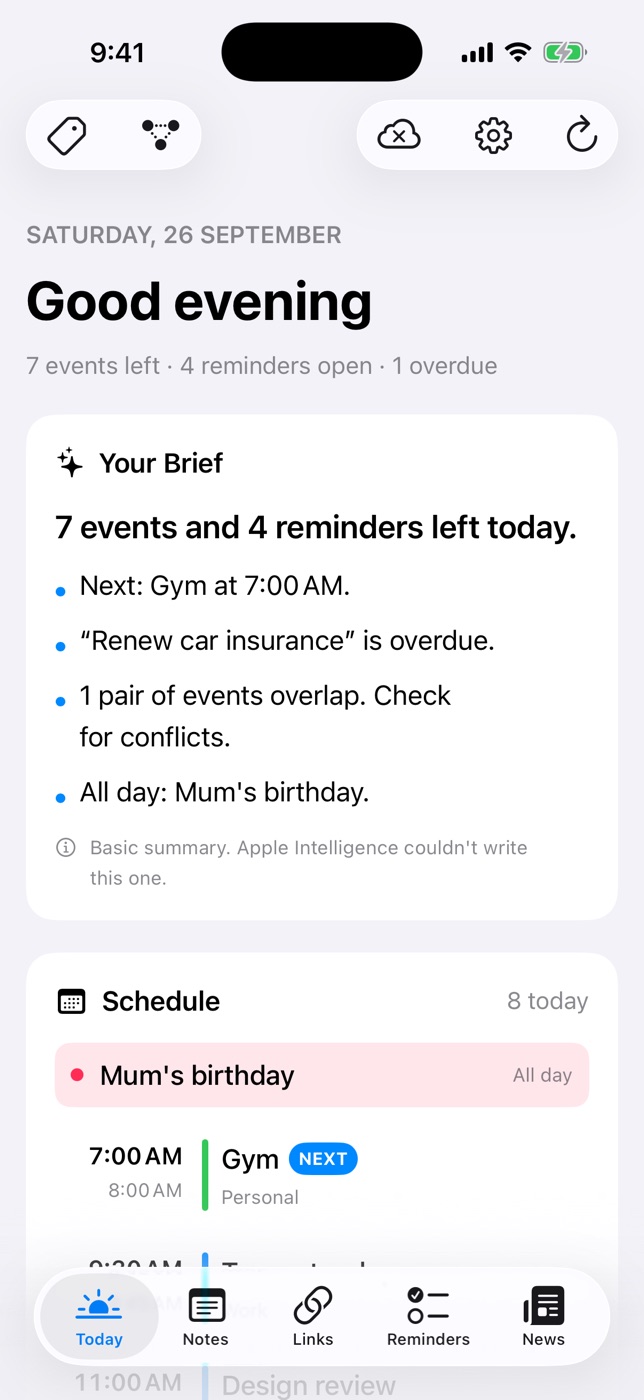
Checking the calendar, then reminders, then email, then the news is how a “quick look” becomes twenty minutes. Daily Dash's Today screen puts your calendar, Apple Reminders, its own reminders and the top headlines together, with a brief written on your device by Apple Intelligence: what's next, what's overdue, what clashes. Read three lines, know your day.
16. Capture tasks in plain English
Type Call mom tomorrow at 5pm #family into quick add and it becomes a dated, tagged reminder called “Call mom”. Check the oven in 20 min, Submit expenses next Friday and Stretch this afternoon all work too. A live preview shows what was understood before you save.
17. Add priority with exclamation marks
End a reminder with ! for low, !! for medium or !!! for high priority. Renew passport !!! saves as a high-priority task, no menus needed.
18. Make the must-not-miss ones ring
For the medication, the school pickup or the parking meter, open the reminder and turn on Ring as Alarm. It rings like an alarm instead of showing a banner you'll miss in your pocket. And for errands, try places instead of times: Buy milk when I leave work. Our guide to location reminders covers the details.
Try these in Daily Dash
Calendar, reminders, notes, saved links and news on one screen, with a brief of your day written on your device. No account, no ads, no tracking. Read the guide →
19. Filter your news to one tag
Headlines are useful until they aren't. In Daily Dash, tag your feeds (#work, #local) and filter Today's news card to a single tag, so the morning check shows only what's relevant to the day ahead. Everything else waits in the News tab.
20. Save the story, not the tab
Found something worth reading but no time now? Tap Save to Links in the News reader. The article's text and images are saved on your device, so it's there on the train or the plane, and you can close the tab guilt-free.
21. Type “/” in notes, and lock the private ones
In Daily Dash notes, type / at the start of a line for headings, checklists, quotes, dividers or a new page inside the current one. It's the fastest way to build a structured note without leaving the keyboard. For the sensitive stuff, like a journal, account details or gift ideas, long-press the note and choose Lock Page. Locked notes are encrypted with a key protected by your PIN, and open with Face ID or Touch ID.
FAQ
What's the single most useful iPhone productivity setting?
Scheduled Summary. Batching non-urgent notifications into one or two deliveries a day removes dozens of interruptions without making you miss anything important.
Do these hacks need the latest iPhone?
Most work on any iPhone running a recent version of iOS. The Action button needs a model that has one, and Hold Assist and Call Screening need iOS 26.
How do I stop my iPhone distracting me at work?
Create a Work Focus that only allows the people and apps you need, give it its own Home Screen page, and have it turn on automatically during working hours or when you arrive at the office.